Settings
Profile, aircraft, group, billing rates, fixed expenses, sales tax authorities, Stripe Connect, members, ledger setup, and subscription — the full Settings page on the web dashboard.
Overview
The Settings page on the web dashboard is where Owners and Admins configure everything about the group, and where every member maintains their own profile. It mirrors the mobile Settings screen for personal/profile fields but adds the administrative editors that are view-only on mobile — sales tax authorities, Stripe Connect onboarding, payment configuration, and member ledger setup — and consolidates Members management as a tab here rather than as a separate sidebar item.
The page is organised into six tabs across the top, each shown only to the roles that need it:
| Tab | Visible to |
|---|---|
| My Profile | Everyone |
| Aircraft & Group | Owners, Admins |
| Billing | Owners, Admins |
| Members | Owners, Admins |
| Ledger Setup | Owners, Admins |
| Subscription | Owners |
If you’re a regular member you’ll only see My Profile. Mechanics see no Settings page at all — their access is restricted to maintenance, squawks, and documents.
My Profile
The personal-info tab that every account has access to — your own profile only.
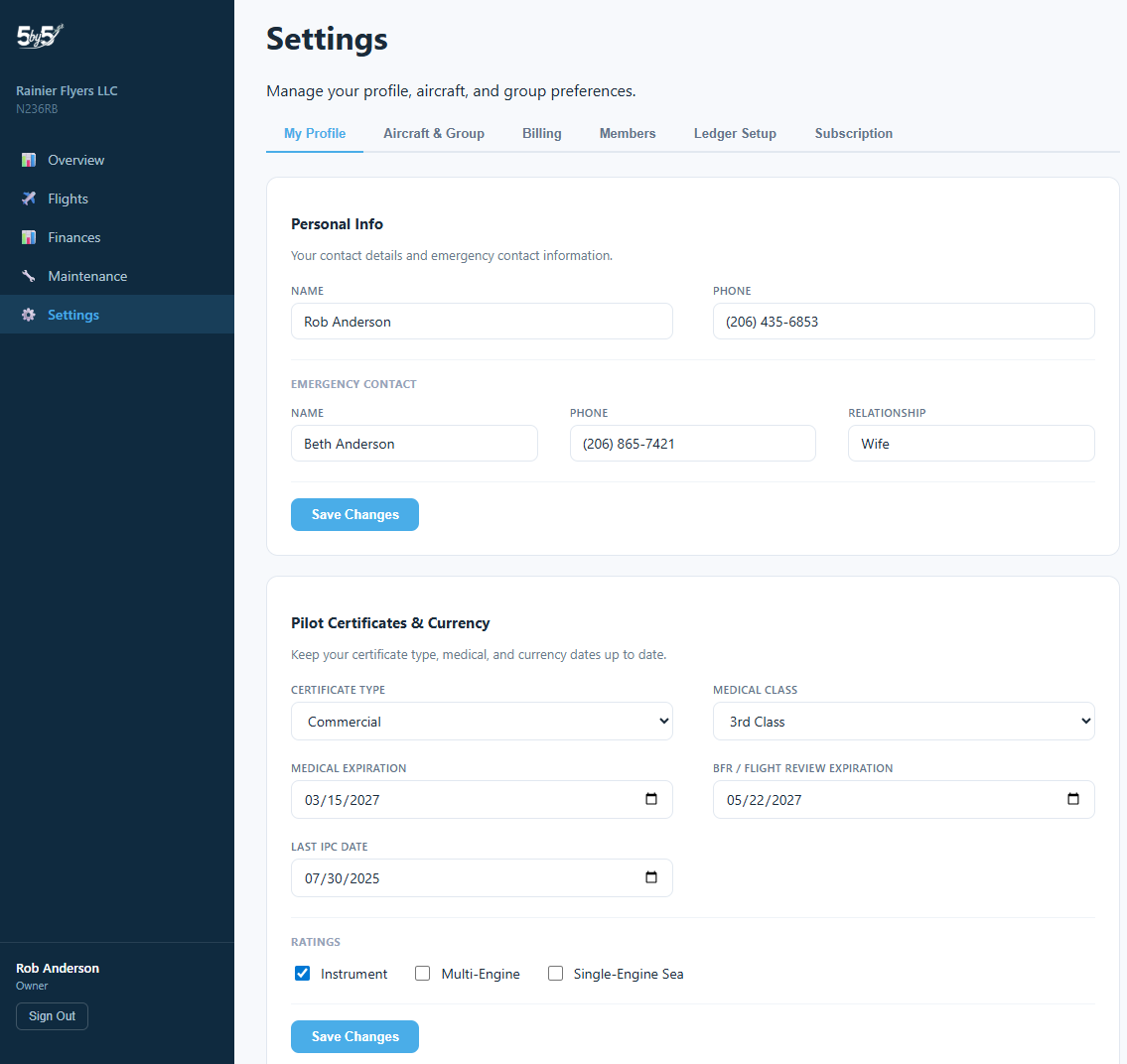
Personal Info — name, phone, email, emergency contact name/phone, and emergency contact relationship. These match the mobile Settings; editing in one place is reflected everywhere.
Pilot Credentials & Currency — pilot certificate type, ratings (single-engine, multi-engine, instrument), medical class, medical expiration, flight review date, and last IPC. The values here feed the Pilot Currency tracker shown on every device.
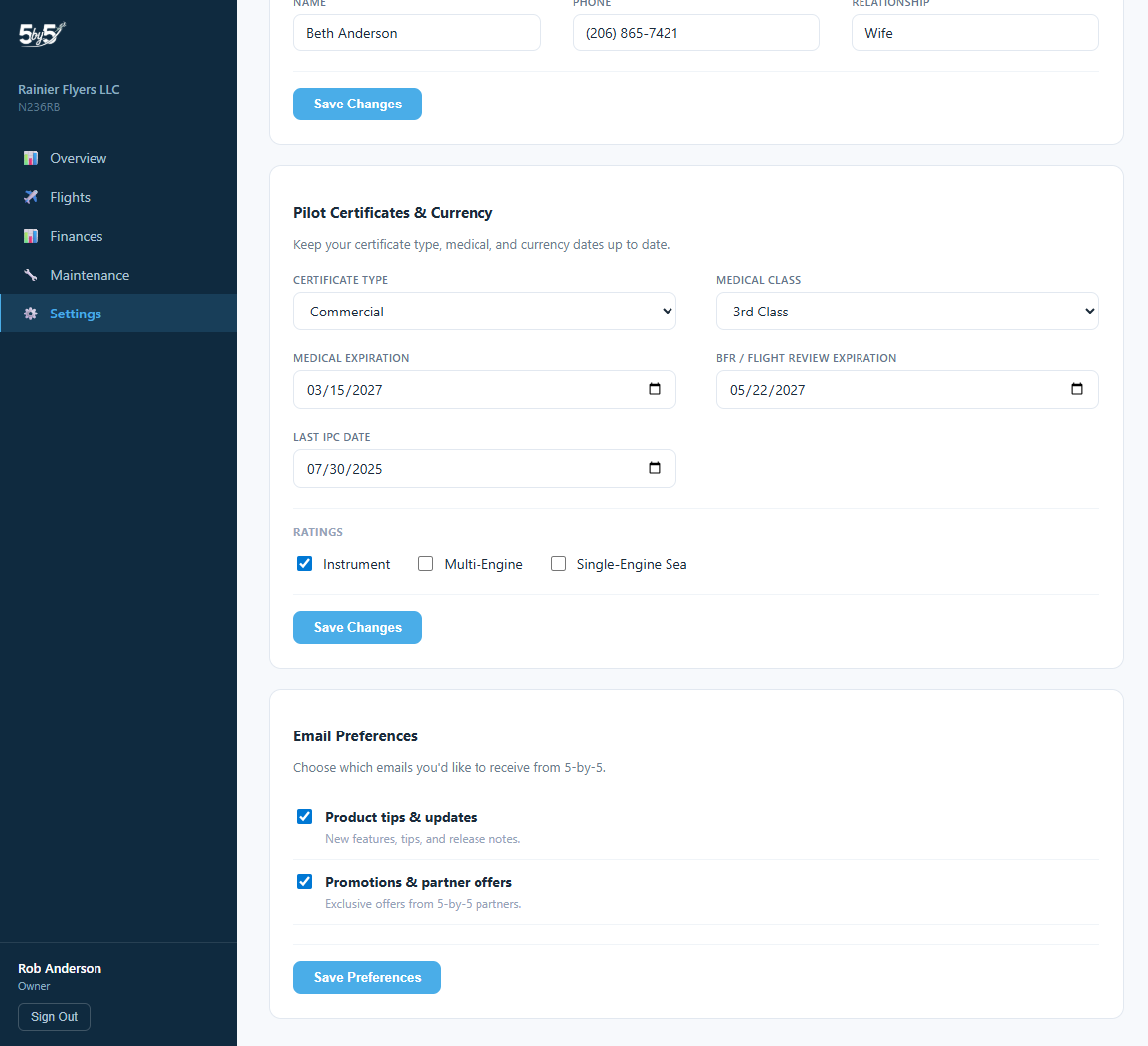
Email Preferences — pick which email categories you want to receive from 5-by-5. See Email Notifications for the full list of categories.
Authentication — change the email address or password used to sign in to 5-by-5. Email changes send a confirmation link to both your old and new addresses (you must click the link in the new address to complete the change). Password changes take effect immediately on the device you’re using. For MFA management and the lost-authenticator recovery path, see the Account Security page.
Personal Data Rights — two actions that satisfy the access and erasure principles under EU GDPR, California CCPA, and Australian Privacy Act §7.3:
- Download My Data — exports a JSON file containing your profile, flights, ledger entries, bookings, and currency records. Same export the mobile app produces; just delivered through the browser.
- Delete My Account — permanently removes your profile and authentication record. Group history (flights, ledger entries) remains in the group but your name is anonymised. If you own a group with other members, transfer ownership first or deletion will fail.
Aircraft & Group
Owners and Admins use this tab to set up the aircraft and the group itself. Members see the values these admins entered but can’t change them here.
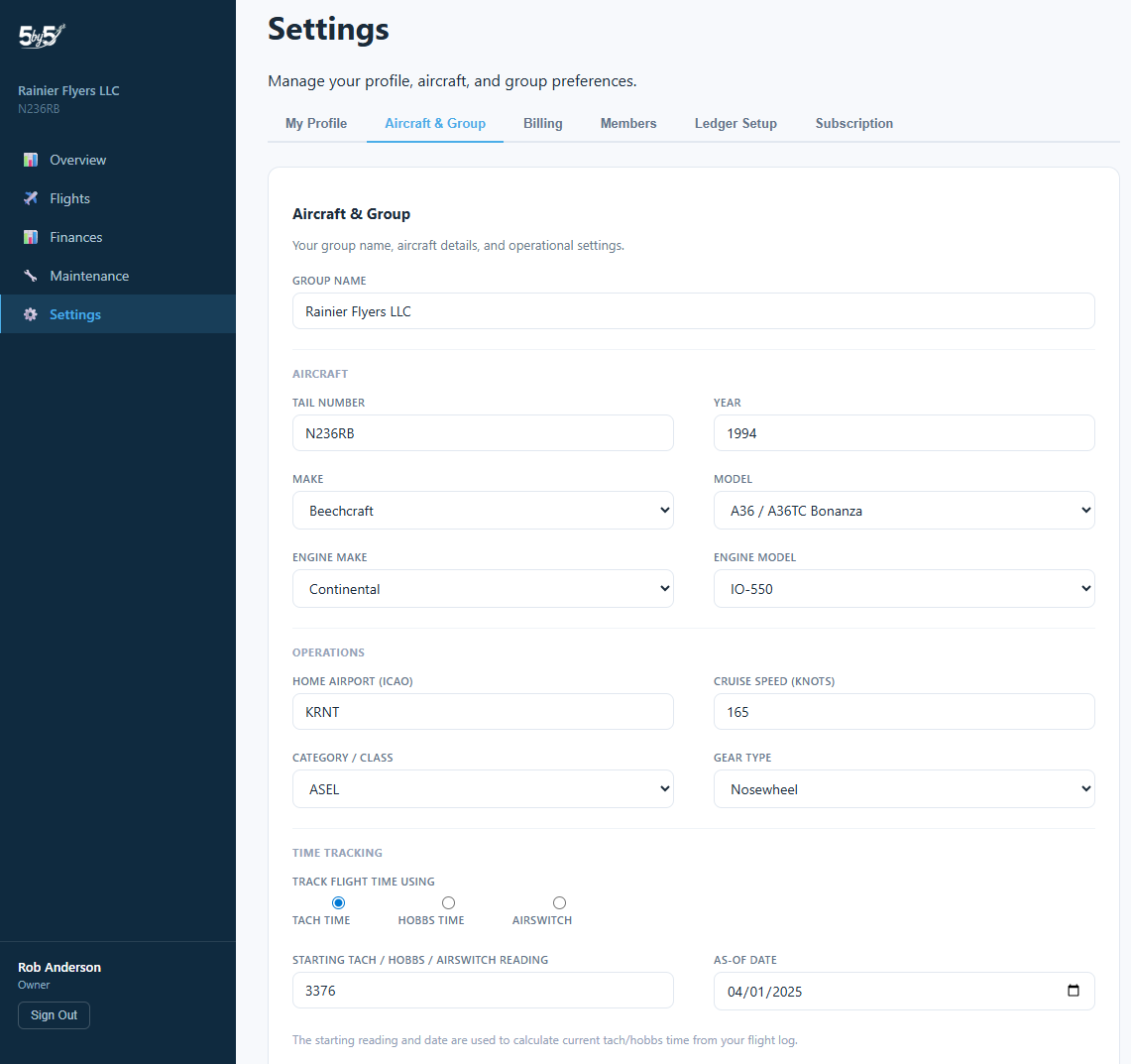
Group — group name, country (US/AU — drives currency formatting, regulatory references like FAA vs. CASA, sales tax handling, and phone validation), and the aircraft tail number visible to all members.
Aircraft — make, model, year, engine make/model, home airport (with auto-resolved timezone), cruise speed, category/class, gear type (nosewheel vs. tailwheel — drives day-currency landing rules), and time tracking type (Tach, Hobbs, or Airswitch).
Aircraft make/model and engine are selected from the shared aircraft catalog. Make and model drive AD lookups, sensible cruise-speed defaults, the bookmarked-by-default manuals in the Documents Library, and category/class for currency tracking. If your make/model isn’t listed, choose Other and email support — we’ll add it.
Billing
The densest tab. Five cards drive how monthly billing is calculated, taxed, and collected.
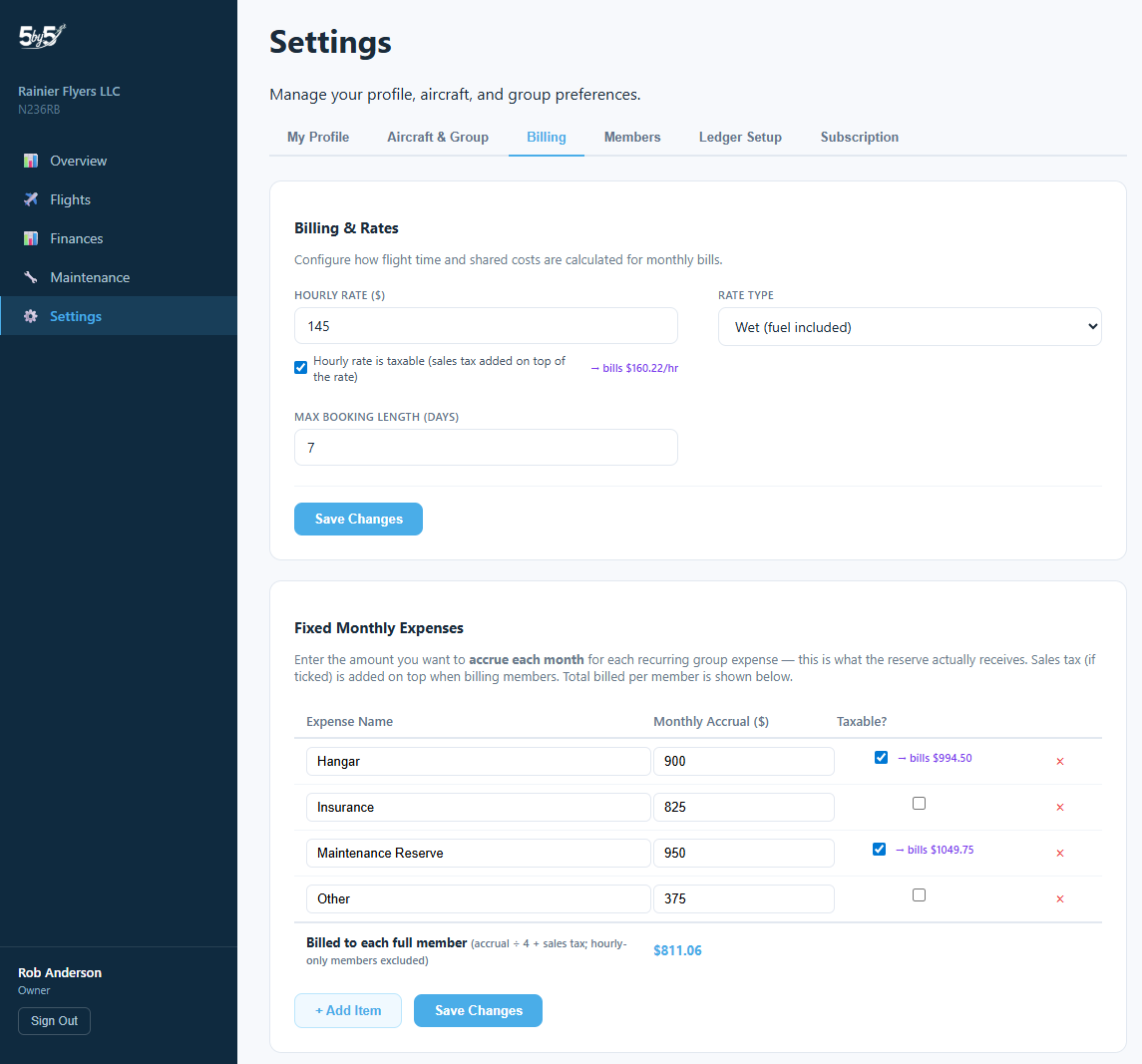
Billing & Rates
Hourly rate, rate type (Wet = fuel included; Dry = fuel billed separately), maximum booking length, the single Monthly Fixed Cost figure, and the day of the month bills are due. The single Monthly Fixed Cost is what each member’s bill uses unless you enable the per-line-item breakdown in the next card.
Fixed Monthly Expenses
A per-line-item breakdown of your monthly fixed cost — e.g., “$450 hangar, $200 insurance, $100 reserve.” When you fill this in, the Member Expenses table and invoice emails both show the breakdown so members understand what their fixed share is funding. The line items also feed the Fixed Expense Items columns on the Sales Tax Report so tax accrues only against the items each authority is configured to tax. Mechanics and hourly-only members are excluded from the fixed-cost split — see Finances → Hourly-Only Members.
Sales Tax Authorities
Configure the state, city, county, or other tax authorities that apply to your group. For each authority specify the rate and which categories (flight charges, fixed expenses, shared group charges) the tax applies to. The Post Bills flow then writes per-authority tax accruals to the group’s tax ledger, which drives the Sales Tax Report.
This card is editable only on the web. The mobile app surfaces tax authority effects on bills but doesn’t let you create or edit authorities themselves — that’s by design, since this is a low-frequency administrative setup, not a daily-use operation.
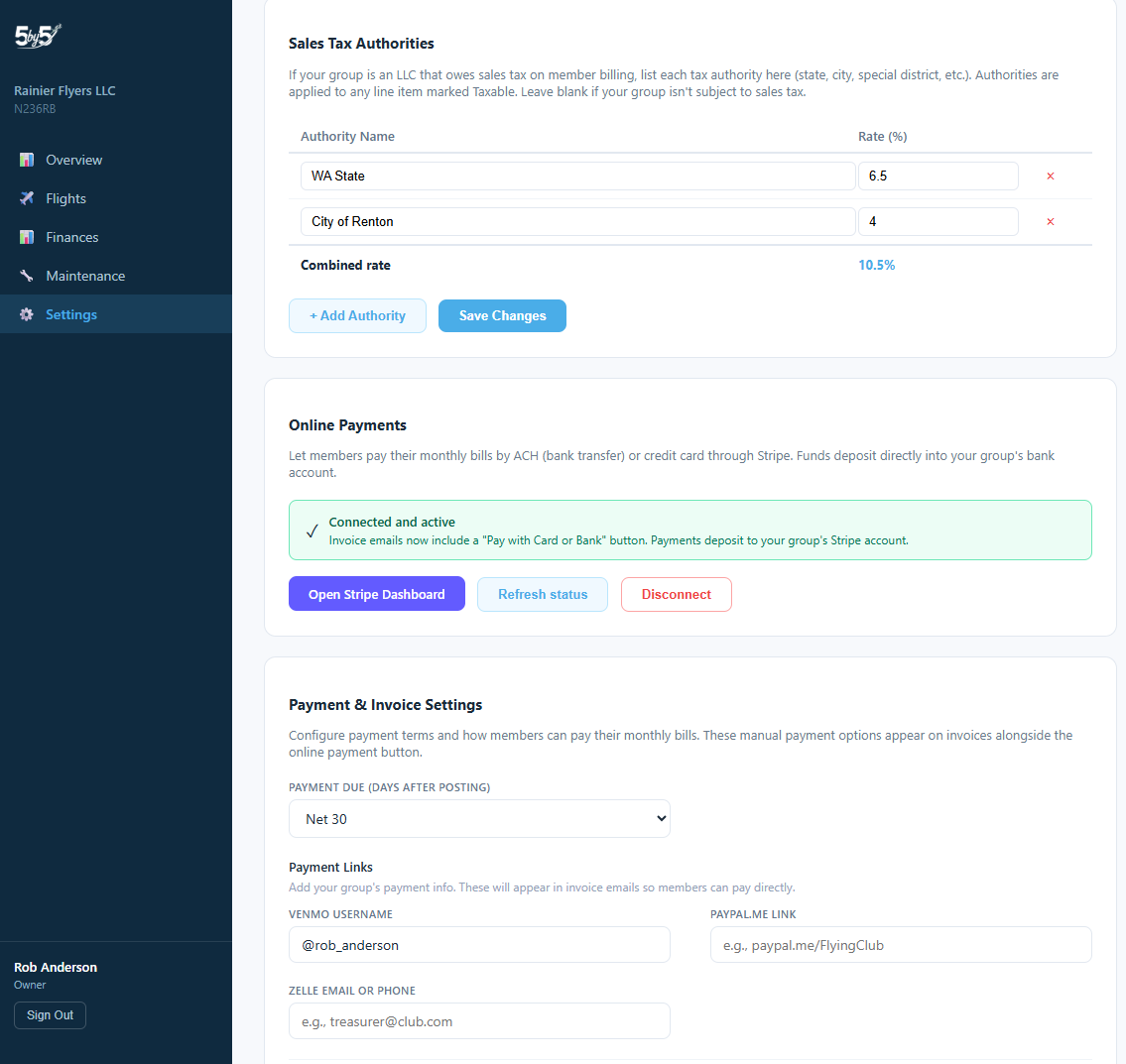
Online Payments (Stripe Connect)
This is where Stripe Connect onboarding happens. Click Connect Stripe to start the flow — you’ll be redirected to Stripe to provide standard business info (group name, address, bank account, EIN if applicable). Once Stripe approves, the Pay with Card or Bank button starts appearing on every posted invoice and ACH/card payments settle directly to the group’s bank account.
For the full Online Payments lifecycle (ACH settlement timing, the Update pending badge, processing fees, what to expect when a payment bounces), see Finances → Online Payments.
Payment & Invoice Settings
Configure the payment due day, late fee policy, reply-to email address used on invoices, and any custom invoice footer text. This is the card that personalises how invoices look and behave once Stripe Connect is live.
Members
Owners and Admins manage the group’s roster from here — roles, titles, invites, and the per-member Hourly billing only toggle that drives the fixed-cost denominator on the Finances page.
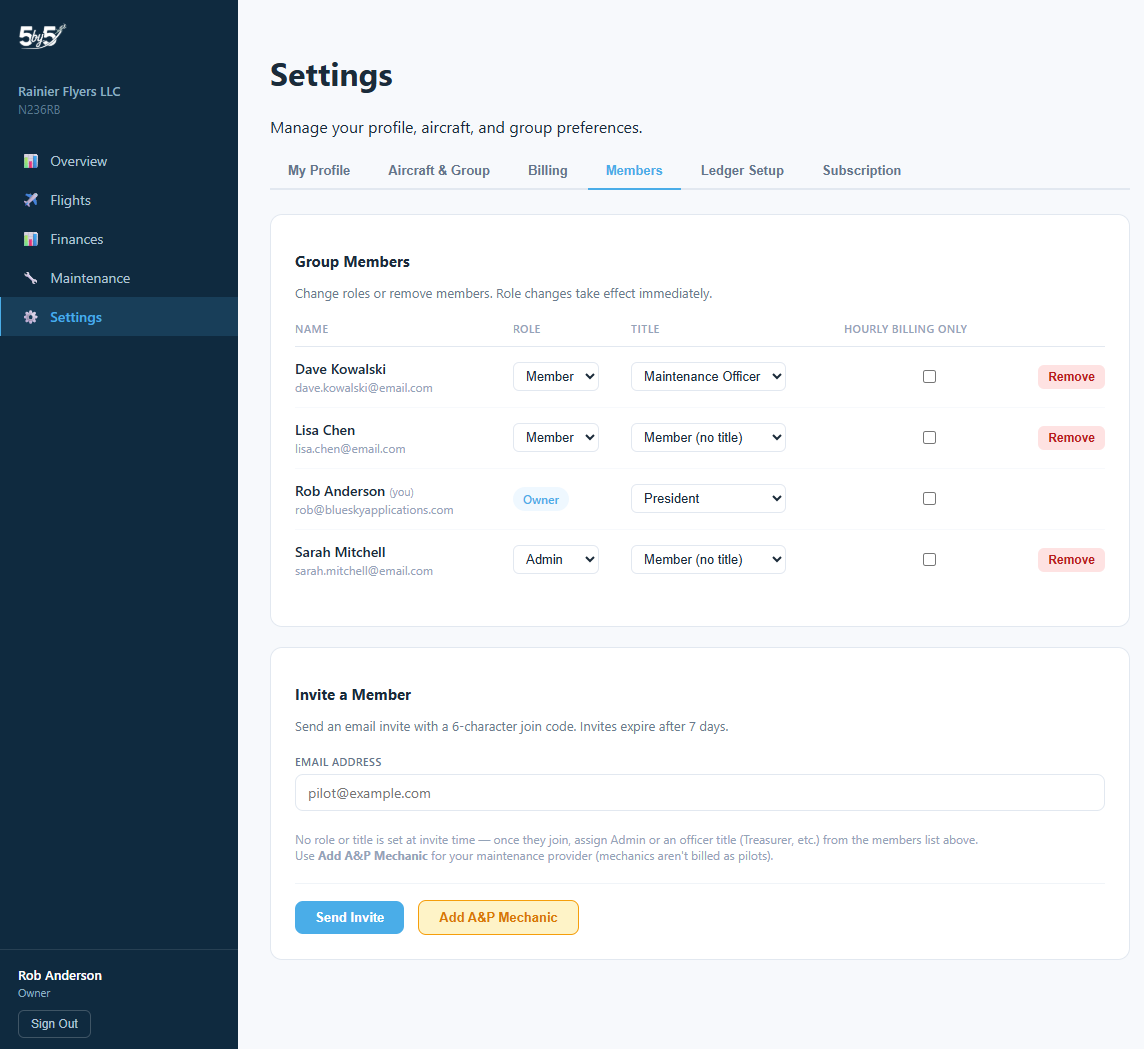
Group Members — every active member with name, email, role (Owner / Admin / Member / Mechanic), and title (Treasurer, Maintenance Officer, etc.). Click a member to expand them and edit role, title, Hourly billing only flag, and contact info — or to remove them from the group.
Invite a Member — generate an invite link or short code. Pick a role for the invite (Member or Mechanic) so the invitee lands in the right scope when they sign up. The join flow also surfaces any placeholder members created from imports so the joiner can claim the right historical record.
See Members & Roles for the full role permission matrix, A&P Mechanic Access scope, and the Maintenance Officer / Treasurer title behaviours.
Ledger Setup
A small but important tab — Member Opening Balances. Use it when migrating a group from a spreadsheet or another tool, where each member’s ledger should start at a specific balance rather than $0.
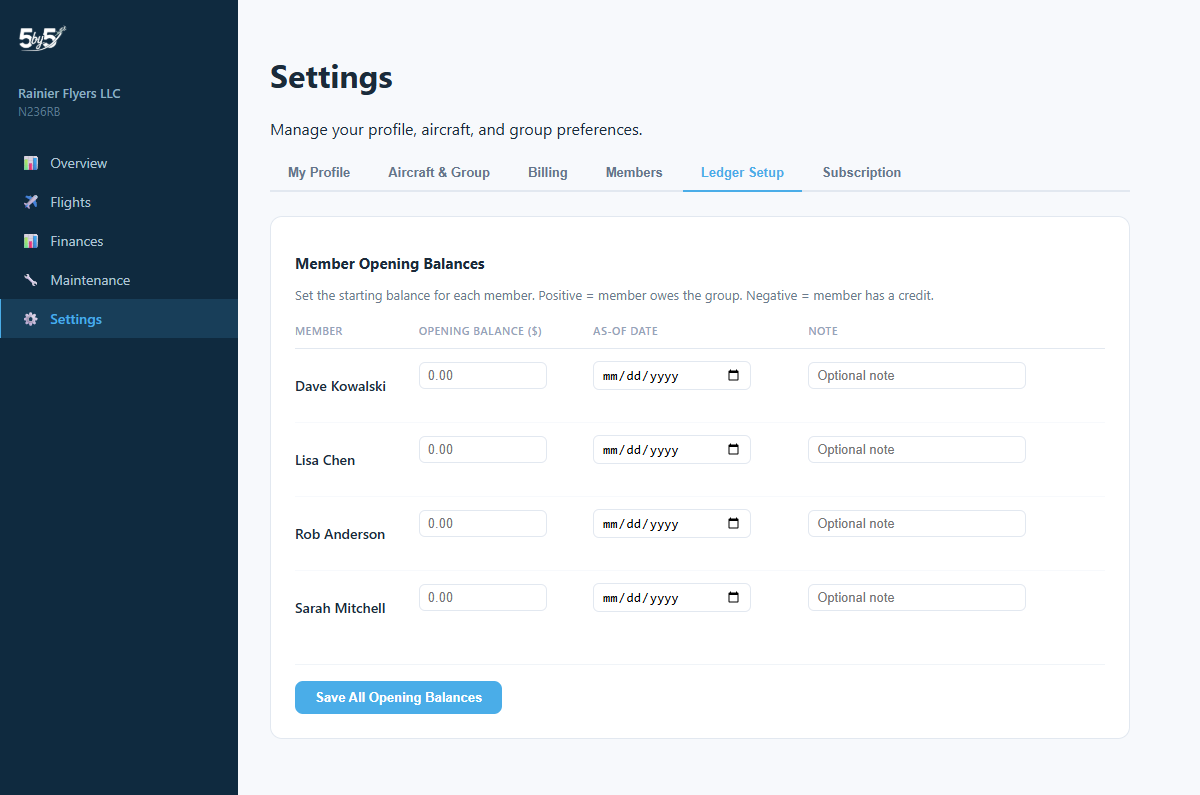
For each member, enter the opening balance — positive means they owe the group, negative means they have credit — and the as-of date. 5-by-5 writes an opening_balance row into each member’s ledger as of that date. Every charge, payment, and adjustment after that flows normally on top of the opening balance.
This is typically a one-time setup. If you need to adjust a balance later, do it as an adjustment entry in the Member Ledger on the Finances page rather than editing the opening balance — the audit trail is cleaner that way.
Subscription
Visible only to the group Owner. Shows the current plan tier, billing cycle, next renewal date, payment method, and the upgrade/downgrade controls.
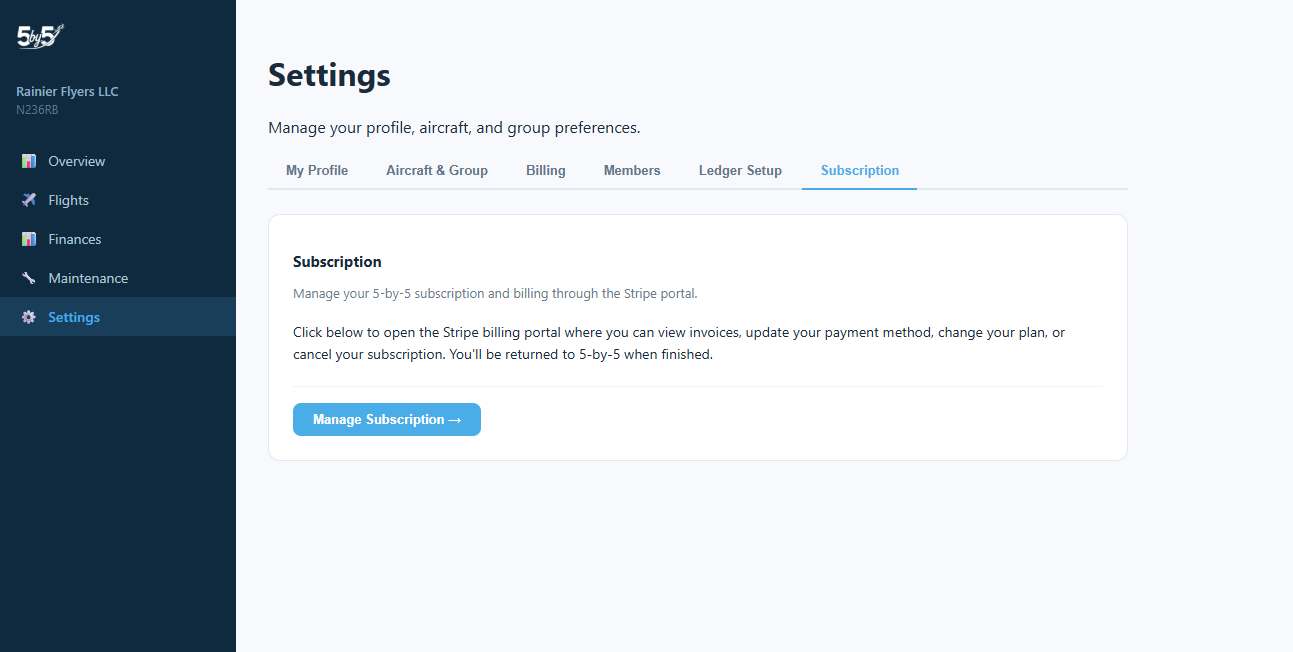
The group’s SaaS subscription is billed to the Owner’s personal payment method via 5-by-5’s billing system. This is separate from Stripe Connect — the Stripe account you configured on the Billing tab is for collecting member payments, not for paying the 5-by-5 subscription itself. The two flows don’t share data.
For plan comparisons (Free vs. Solo vs. Club, AU pricing, and what each tier includes), see Billing & Subscriptions.
Related Pages
- Mobile Settings — the matching mobile-app screen, including the configuration items that are view-only on mobile
- Members & Roles — full role permission matrix and title behaviours
- Finances — where the rates, fixed expenses, sales tax, and ledger you configure here actually drive billing
- Online Payments — the ACH and card payment lifecycle from the member’s perspective
- Billing & Subscriptions — 5-by-5 plan tiers and what each includes
- Email Notifications — categories controlled by the Email Preferences card