Maintenance
Gantt timeline, component time tracking, scheduled maintenance with AD-aware N/A handling, future expense forecast, oil analysis trend chart, squawk management, and a bookmark-driven Documents library — the full maintenance picture on the web dashboard.
Overview
The Maintenance page on the web dashboard gives Owners, Admins, and Mechanics the full picture of an aircraft’s maintenance status, all on one screen: a 12-month Gantt view, life-limited component tracking, scheduled-item management with AD-aware handling, a forward-looking expense forecast, open squawks, an oil-analysis trend chart, and the group’s documents library. Everything stays in sync with the mobile app in real time.
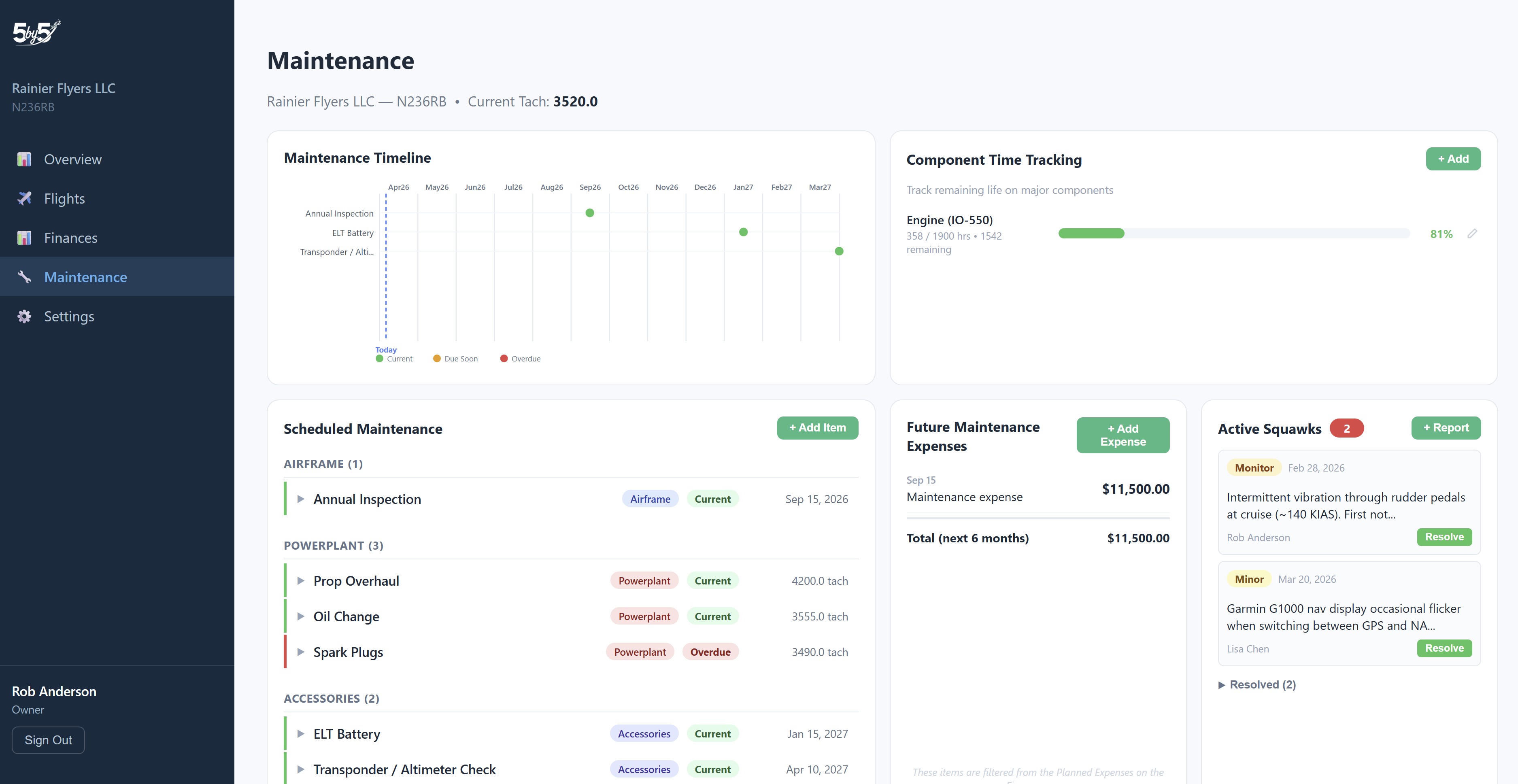
Maintenance Timeline (Gantt)
At the top of the page, a 12-month Gantt chart plots every scheduled maintenance item across a forward-looking timeline. Each item is represented as a coloured dot at its predicted due date:
- Green — current, not due in the near term
- Orange — due within 10 hours or 10 days
- Red — overdue
Items are grouped by category (Airframe, Powerplant, Accessories, Other) and a dashed blue Today line marks your current position so you can see at a glance what’s behind you, what’s coming up, and where things cluster. It’s the right view for seasonal planning, deciding whether to bundle several items into one shop visit, or spotting an item you’ve forgotten about.
The Gantt itself is read-only — for edits, scroll to the Scheduled Maintenance section below.
Component Time Tracking
Track time-in-service for major components that have a Time Between Overhaul (TBO) or hard life limit. Typical use cases:
- Engine — TBO published in your engine manual
- Propeller — overhaul interval by hours and/or calendar years
- Vacuum pump, magnetos, alternator, governor, accessories — anything with a finite service life that isn’t already covered by a scheduled item
Each component shows:
- Name — what it is (e.g., “Engine”, “Prop”, “Vacuum Pump”)
- TBO — the total hours before overhaul or replacement
- Hours Used — hours accumulated since the last overhaul or zero point
- Progress bar — colour-coded (green when healthy, orange approaching TBO, red near or past the limit)
Click + Add to track a new component. This is useful for components your scheduled-maintenance list doesn’t already touch but you don’t want to be surprised by — e.g., a vacuum pump quietly accumulating hours toward replacement.
Scheduled Maintenance
The full list of active maintenance items — the same items the mobile app shows, but with more room to review and manage them in one sitting. Each item shows its name, category, next due date or tach reading, and a current status badge (Current, Due Soon, Overdue).
Actions available from the web:
- + Add Item — create a new maintenance item with a name, category, interval, and trigger (calendar-based, tach-based, or both)
- Edit — update an item’s details, interval, or due date
- Complete — log a completion with date, tach, and notes; 5-by-5 calculates the next due date automatically
- Mark N/A — file the item away as not applicable to your specific aircraft
Why Mark N/A exists
Many maintenance items don’t apply to your specific aircraft, and the most common case is Airworthiness Directives. The automatic AD import (on the mobile app) pulls every AD published for your make, model, and engine — but most ADs are scoped to specific serial-number ranges, sub-models, or installed equipment, so a meaningful share won’t apply to your individual aircraft. Rather than have them noisily flag overdue, use Mark N/A to file them cleanly.
N/A items aren’t deleted — they’re set aside so they don’t reappear on future AD/SB syncs, and you can restore one from the Not Applicable section if circumstances change (e.g., an avionics retrofit brings a previously-irrelevant AD into scope). The web page exposes the same N/A list and restore action as the mobile app.
Web vs. mobile parity
The mobile Maintenance Tracking page handles the same items end-to-end and is what your A&P typically uses on the hangar floor. The web page is the better tool when you want to plan across a year, edit several items in one sitting, run the AD-import follow-up triage, or reconcile alongside the Finances expense forecast.
Future Maintenance Expenses
A forward-looking list of anticipated maintenance costs across roughly the next 6 months, drawn from your Planned Expenses. Any planned expense whose category is Maintenance (or a Maintenance-adjacent category like Annual Reserve / Engine Reserve) and whose date falls in the upcoming window appears here automatically. Useful for budget planning and timing the annual inspection alongside other large items.
If a row here looks wrong — amount changed, date moved, no longer relevant — update it on the Finances page; the change reflects here on next load.
Active Squawks
Every open squawk reported across mobile and web shows up here with severity badge, description, optional photo, the reporter’s name, and the date filed. Owners, Admins, Mechanics, and members with a Maintenance Officer title can act on them:
- + Report — file a new squawk from the web. When filed, the same squawk alert email goes out to mechanics, maintenance officers, and (BCC’d) every owner and admin.
- Edit — update the description, severity, or photo
- Resolve — mark a squawk as resolved with resolution notes and an optional photo; resolved squawks move to a collapsible Resolved history below the active list
Resolved squawks aren’t deleted — they remain as searchable history so you can spot recurring patterns (“the magneto’s been replaced twice in eight months — let’s investigate the harness”).
Severity ladder
- Minor — informational, no immediate action required (“Slight oil seep at the prop hub, monitoring”)
- Monitor — watch and re-evaluate (“ELT showing 70% on the test light, replace at next 100hr”)
- Grounding — the aircraft is not airworthy until resolved. Filing a Grounding squawk triggers a red banner on every group member’s home screen so no one tries to book or fly the aircraft.
See Squawk Reporting for the full lifecycle, photo handling, and email-notification routing.
Oil Analysis
Oil analysis is one of the cheapest early-warning systems for engine wear — a sudden jump in iron usually signals cam or lifter wear; an aluminium spike points at piston ring or bearing degradation; copper trending up over multiple samples can indicate bearing material breaking down. Logging oil samples here lets you spot trends before they become engine replacements.
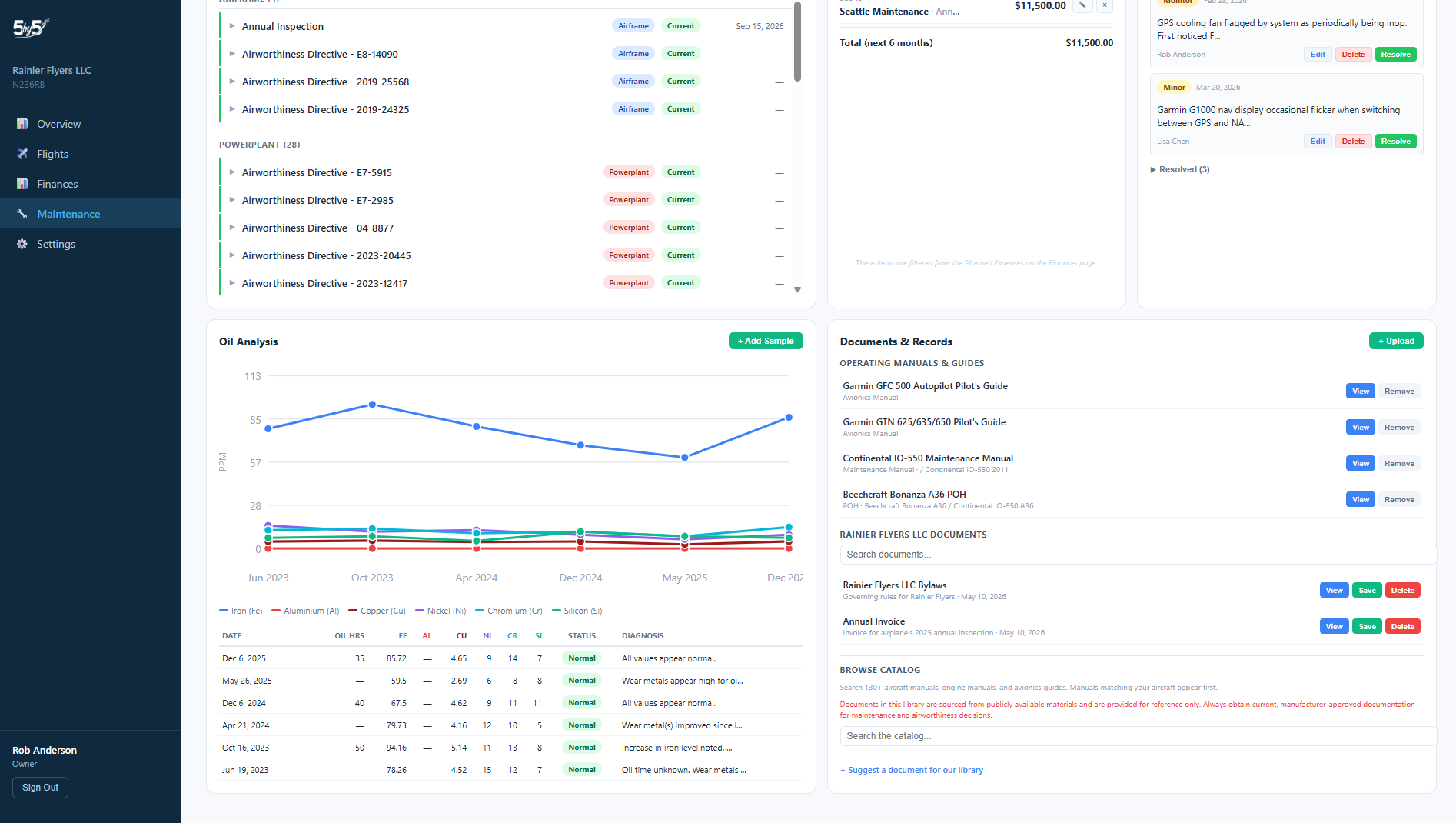
Each sample entry includes:
- Sample date and tach reading
- Lab results — iron, copper, lead, tin, aluminium, chromium, nickel, silicon, and other wear metals (ppm)
- Diagnosis / notes — the lab’s verdict and any free-text observations
5-by-5 plots the results as a trend chart so you can see whether wear metals are stable or trending up over time. Click + Add Sample to enter a new result when you receive a report from your oil analysis lab (Blackstone Laboratories, Aviation Oil Analysis, etc.).
Documents & Records
The Documents & Records widget is your on-the-airplane reference library: bookmarked operating manuals, group-uploaded paperwork, and a searchable catalog of 130+ aircraft, engine, and avionics manuals. The widget is organised into three sections within one panel.
Operating Manuals & Guides
The manuals you’ve bookmarked from the public catalog — POH/AFM, engine manual, avionics operating manuals, and supplements that apply to your specific aircraft. Bookmarked items appear here at the top of the widget so they’re one click away rather than buried in the catalog browse below.
Group Documents
A search-and-upload area for your group’s own files: annual inspection signoffs, AD compliance records, 337 forms, logbook scans, weight & balance updates, insurance certificates, and anything else the group wants accessible from any device. Use the + Upload button (top right of the widget) to add a file, and the Search documents… field to find one by filename.
Group-uploaded documents aren’t yet content-searchable via Ask AI — auto-indexing of group uploads is on the roadmap. The widget’s search box matches on filenames; the AI Assistant can search inside the bookmarked catalog manuals.
Browse Catalog
A searchable index of 130+ publicly-available manuals covering aircraft, engines, and avionics. Manuals matching your aircraft (by make/model/engine) surface first. Click any catalog manual to view it or to bookmark it into your Operating Manuals & Guides section — bookmarking is what makes a manual show up in your library and what makes it searchable by the AI Assistant.
If you’d like to see a manual added that isn’t in the catalog, use the Suggest a document for our library link below the search box.
Important: Catalog manuals are sourced from publicly-available materials and are provided for reference only. Always obtain current, manufacturer-approved documentation for maintenance and airworthiness decisions.
Tip — what the search box actually does: The widget's Search documents… field matches filenames and titles only — it doesn't read inside the files. To ask a content question (e.g., "What's the hot start procedure for my engine?", "What's the autopilot's altitude-hold limit?"), use the AI Assistant, which reads inside the manuals you've bookmarked.
Tip — offline access: Documents are served from the cloud and require an internet connection to open. If you need access on the ramp or at a remote airport, open the document on your mobile device before you go so it caches locally.
Inviting a Mechanic
Mechanic invites are sent from Settings → Members tab → Invite a Member, with the role set to Mechanic when you address the invite. The flow is identical between web and mobile, and once added the mechanic receives squawk alert emails the same way other maintenance roles do.
Mechanics get a tailored, restricted view: maintenance items, squawks, and the Documents Library — but no access to flights, the ledger, member balances, or scheduling. See Members & Roles → A&P Mechanic Access for the full role description.
Asking AI About Maintenance
For complex questions across many items — “What’s coming due in the next 50 hours?”, “When was the last oil change?”, “What are the recommended spark plugs for my IO-550?” — the AI Assistant is often faster than scrolling through this page. It reads your maintenance items, oil samples, squawks, and the manuals you’ve bookmarked directly.
Related Pages
- Maintenance Tracking (Mobile) — the mobile-app maintenance screen, with the AD-import flow
- Squawk Reporting — severity ladder, photo attachments, email alerts, and resolution lifecycle
- Members & Roles — A&P Mechanic Access and the Maintenance Officer title
- Finances → Planned Expenses — how items end up on the Future Maintenance Expenses list
- AI Assistant — ask plain-language questions about your data and your bookmarked manuals