Getting Started
Create your account, choose your plan, and get flying with 5-by-5 in minutes.
What is 5-by-5?
5-by-5 is an aircraft management platform built for pilots who want a smarter way to manage their airplane — whether you fly solo or share ownership with partners and club members. It combines flight logging, maintenance tracking, pilot currency, scheduling, group finances, and an AI assistant in one place.
5-by-5 has two components that work together:
- The mobile app (iOS and coming soon to Android) — the primary tool for day-to-day flying: logging flights, booking the airplane, checking maintenance, tracking currency, asking questions about your aircraft, and more.
- The web dashboard — a companion tool optimized for deeper financial management, detailed maintenance records, and a broader view of airplane activity (avaiable on paid plans only).
Most pilots will spend the majority of their time in the mobile app. The web dashboard is for deeper context and analytics where a full screen and mouse is more usable than a mobile device.
Choosing Your Plan
5-by-5 offers two plan types depending on how you fly:
Solo plans — for single-owner pilots. You get full access to flight logging, maintenance tracking, pilot currency, the Documents Library, the web dashboard, the AI assistant, and more — with no scheduling or multi-member features to clutter your experience.
Club plans — for flying clubs, partnerships, and co-ownerships. Adds scheduling, multi-member management, group billing, online ACH/card payments through Stripe Connect, and the member financial ledger on top of everything in the Solo plan.
Both plan types have a free tier with basic features and a paid tier that unlocks the full platform. See Billing & Subscriptions for a complete feature comparison.
Where You Fly
5-by-5 currently supports pilots in the United States and Australia, with currency, weather, sales tax/GST, and date/distance formatting tailored to each region. Country is set on a per-group basis during signup. See Onboarding Walkthrough to learn more.
Creating Your Account
Download the 5-by-5 app and tap Create Account. Enter your email address and a password, then verify your email with the code we send you.
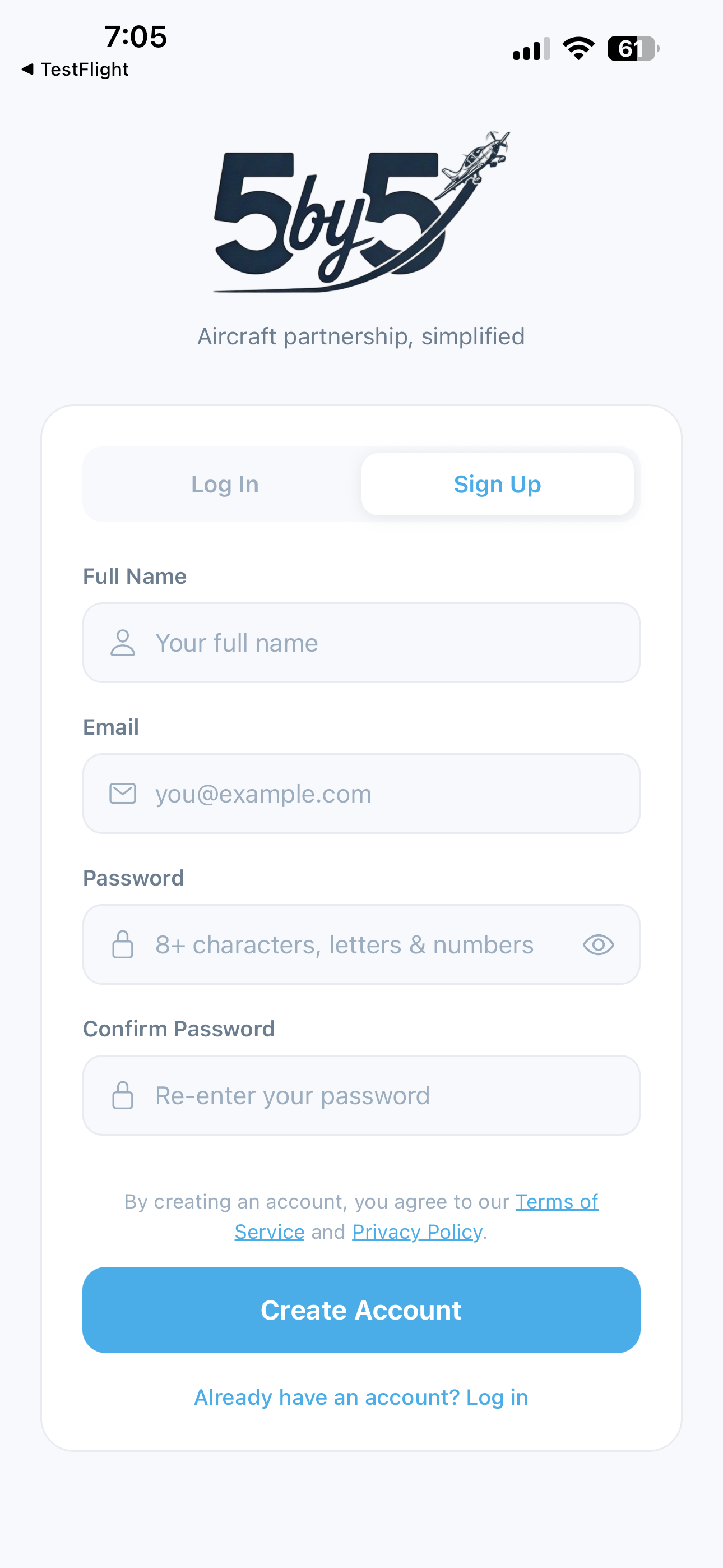
If you already have an account, tap Log In instead.
After verifying your email, 5-by-5 walks you through a one-time Multi-Factor Authentication (MFA) enrollment before you can reach the main app. Scan the QR code with an authenticator app (Microsoft Authenticator, Authy, 1Password, etc.) and enter the 6-digit code it generates. This is a required step — it takes about 30 seconds and substantially raises the bar against unauthorized access to your aircraft records and group finances. See Account Security for the full setup and recovery options.
Setting Up: Four Paths
After creating your account, you’ll choose how to get started:
Create a New Group (Club)
You’re setting up a new flying club or partnership. The onboarding wizard walks you through naming your group, entering your aircraft details, setting billing rates, and completing your pilot profile. See the Onboarding Walkthrough for a step-by-step guide.
Create a Solo Account
You’re a single-owner pilot. The setup is similar to a group, but without scheduling or billing configuration. You’ll enter your aircraft details and pilot profile. See Solo Mode for what’s included.
Join an Existing Group
Someone has already set up a group and sent you an invite code. Tap Join a Group, enter the code, and complete your personal profile. Your aircraft and group settings are already configured — you just need to add your own pilot information.
Add Another Group or Account
Already in 5-by-5 and want to set up a new instance for a different airplane or group? From the Settings screen, tap Join a Group to join an existing group with a code, or Create New Group or Solo Account to start fresh. Your name, contact details, emergency contact, certificates, and ratings carry over automatically — you only fill in what’s new. See Settings for details.
Inviting Members (Club Plans)
Once your group is created, invite your co-owners or club members:
- Go to the Members screen
- Tap the invite button and enter their email address
- They’ll receive an invite code by email from
invites@blueskyapplications.com - They download the app, create an account, tap Join a Group, and enter the code
The free Club tier supports up to 2 members. Upgrade to Club for unlimited members.
Heads up: The invite email may land in spam on the first send. If a member tells you they didn't receive it, ask them to check their junk folder. See Email Notifications for allowlisting instructions.
Your First Flight
After setup, you’re ready to go:
- Book a flight (Club plans) — tap Book Time on the home screen to reserve the airplane on the group calendar
- Log a flight — tap Log Flight and enter your tach times, airports, landings, and any squawks. On many flights you can tap Prefill flight data to import the route, landings, and an estimated tach time from your flight’s ADS-B or FlightAware trace automatically.
- Check your currency — your pilot currency updates automatically based on logged flights and events
- Open your route in your EFB — tap the route on any booking or flight log entry to hand off to currently supported EFBs ForeFlight or Garmin Pilot
- Ask AI anything — tap the Ask AI tab to ask questions about your aircraft’s POH, maintenance, or finances. See AI Assistant.
Tip: On Club plans, you can convert a booking directly into a logged flight — just open the booking and tap Log Flight. This option appears once the booking's end date is today or earlier.
Next Steps
- For owners and treasurers: Set up online payments so members can pay their monthly invoices by ACH or card, and connect your group’s bank account via Plaid to see actual transactions next to planned expenses on the Finances page.
- For everyone: Allow-list 5-by-5’s sender addresses so important emails like invoices, payment receipts, and squawk alerts don’t end up in spam. See Email Notifications.
- For mechanics: Your group can invite you as a Mechanic with limited access to maintenance and the Documents Library. See Members & Roles.