Members & Roles
Manage group membership, roles, permissions, mechanic access, hourly-only members, and contact information.
Overview
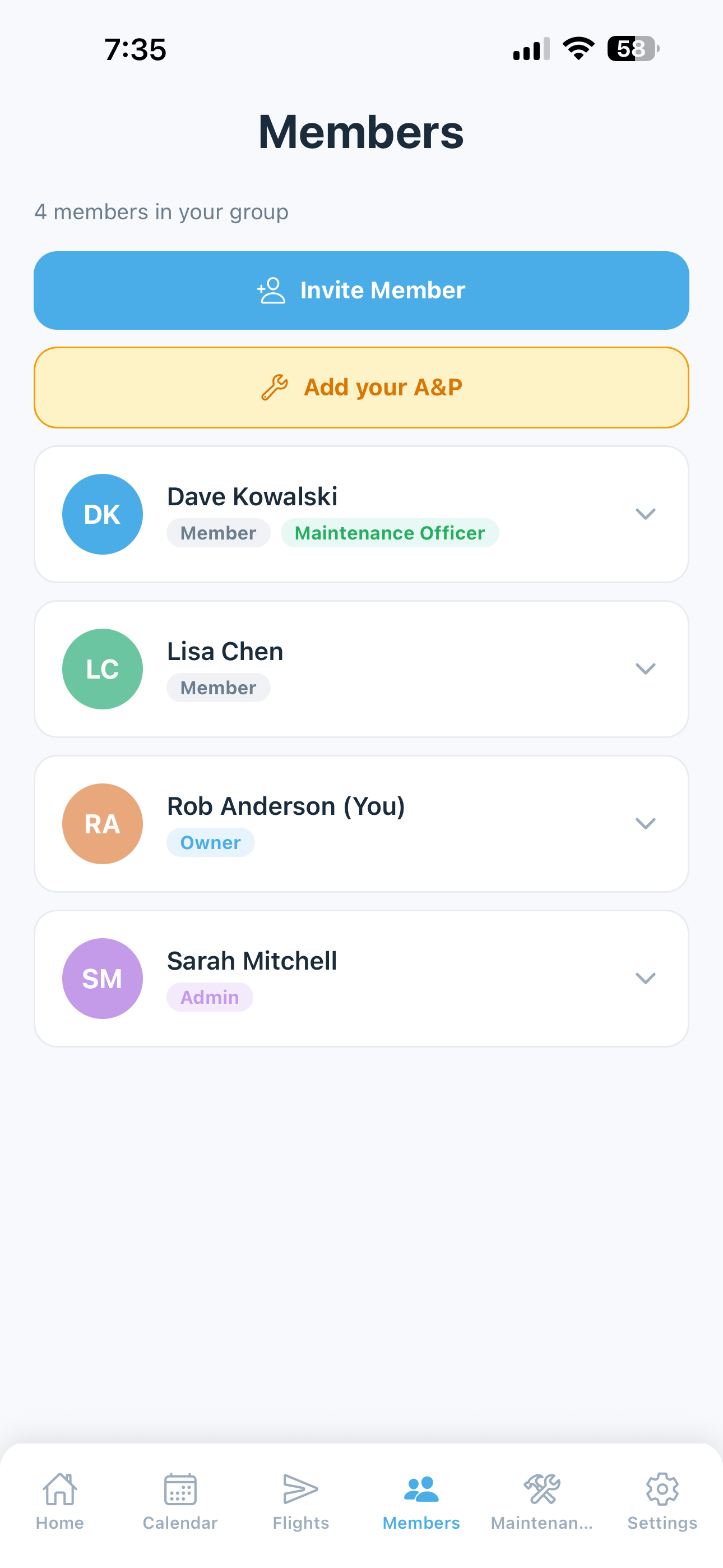
The Members screen shows everyone in your group with their contact info, role, flight stats, and quick-contact actions.
Most of the features on this page — roles, titles, invites, member management — are Club plan features. On a Solo plan, the only applicable section is A&P Mechanic Access, which allows you to give your mechanic limited access to your maintenance records.
Members in a Club group each have a role (Owner, Admin, or Member) and optionally a title (President, Treasurer, etc.). Roles control what actions a member can take. Titles are organizational labels — most are cosmetic, but the Maintenance Officer and Treasurer titles carry specific functional permissions. A separate per-member flag — Hourly billing only — controls whether the member shares the monthly fixed costs or pays for flight hours only.
Member Cards
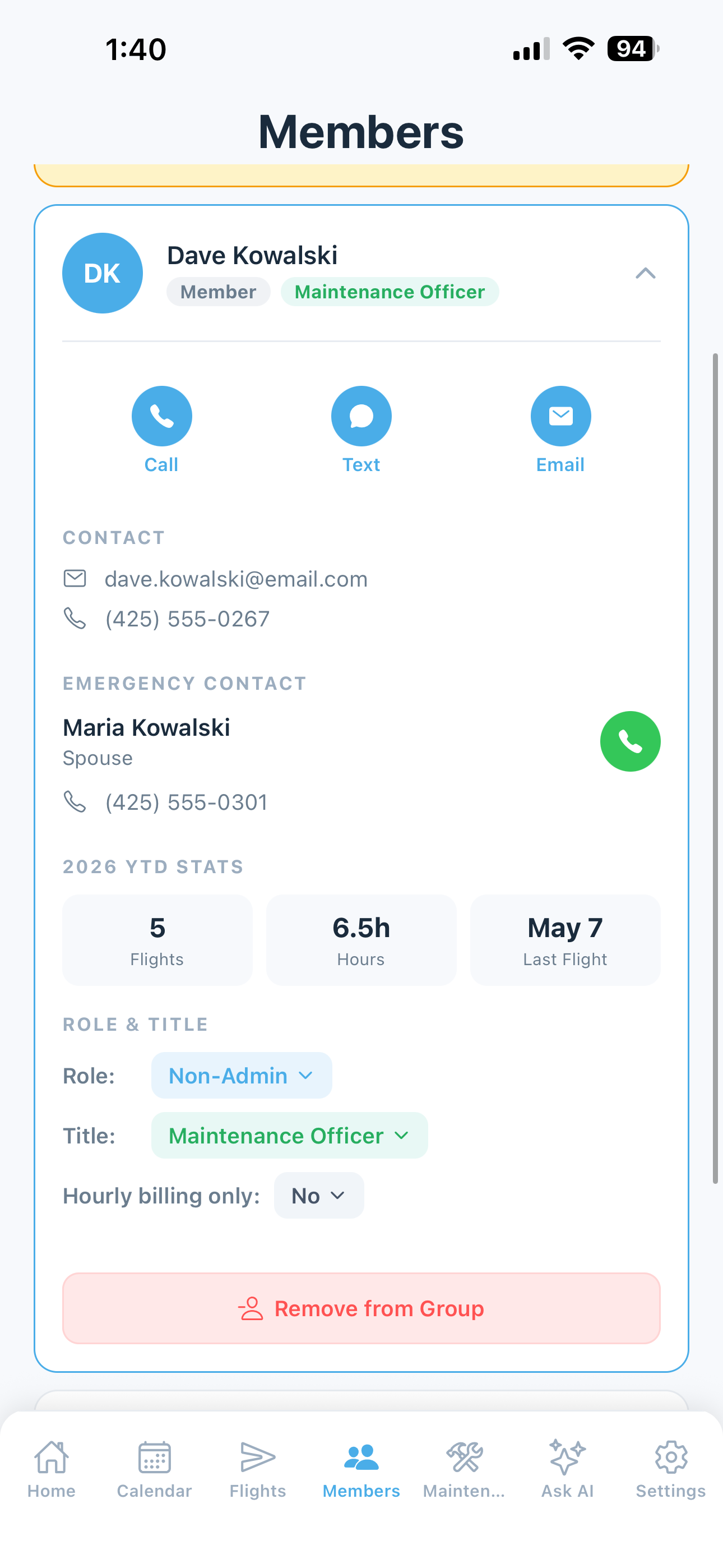
Each member is shown as a card with:
- Avatar — profile photo or initials with their assigned color
- Name — with a “You” label on your own card
- Contact info — tap to call, text, or email directly. Available options show a blue icon; unavailable options are gray.
- Emergency contact — name, relationship, and call icon
- YTD stats — flights and hours this year, and date of most recent logged flight
- Role — Owner, Admin, or Member
- Title — optional organizational title
- Hourly billing only — small flag if applicable
Roles & Permissions (Club plans)
Club plans support three roles:
| Role | Permissions |
|---|---|
| Owner | Full control — manages roles, transfers ownership, removes members, and controls all settings |
| Admin | Manages members and group settings, performs all standard actions |
| Member | Books flights, logs flights, reports squawks, and manages their own profile |
For most clubs, all members will be set to Admin — especially in equally shared co-ownerships where full visibility and access makes sense for everyone. The Member role is available for situations where you want to give someone more limited access, such as a new member on probation or a guest pilot.
On the free tier, all members have equal permissions with no role differentiation.
Changing a Member’s Role
An Owner or Admin can change any member’s role:
- Tap the member’s card to expand it
- Tap their current role badge (e.g., “Admin” or “Non-Admin”)
- Confirm the promotion or demotion
The change takes effect immediately.
Organizational Titles
Titles are optional labels for identifying roles within your group. Available titles:
- President
- Treasurer — grants visibility to all member balances on the home screen and web dashboard, even if their role is set to Member
- Secretary
- Safety Officer
- Maintenance Officer — grants maintenance permissions (add, edit, complete, and delete maintenance items, resolve squawks) even if the member’s role is set to Member. Also subscribes the member to squawk alert emails.
- Other — enter a custom title (e.g., “Hangar Manager”, “Check Pilot”)
Each predefined title can only be held by one member at a time. Only the Treasurer and Maintenance Officer titles carry functional permissions — all others are for display only. If a member needs a combined title that isn’t one of the above (e.g., “Secretary / Safety Officer”), use Other to enter a custom label.
Hourly-Only Members
If a member only flies occasionally and you’d like them to pay just for their flight time without contributing to the monthly fixed costs (hangar, insurance, reserves), toggle Hourly billing only on their member card.
Effects:
- The member is excluded from the fixed-cost denominator when calculating each member’s share. If you have 4 active pilots and one is hourly-only, the fixed costs are split across the other 3.
- The Estimated Monthly Bill on their home screen shows only their flight charges, no fixed share.
- The Member Expenses table on the Finances page reflects this correctly.
This is useful for:
- Infrequent fliers who want pay-as-you-go billing
- Family members or guest pilots covered by the primary member
- Trial members who pay per flight while deciding whether to join formally
To toggle: open the member’s card, scroll to Hourly billing only, and tap the toggle. Owners and Admins can change this for any member; members cannot change their own setting.
A&P Mechanic Access (Paid plans)
On paid plans, you can give your A&P or IA mechanic access to your maintenance records without giving them access to your flights, billing, or member information.
What mechanics can do:
- View all maintenance items and their history
- Mark maintenance items as complete
- Access the Documents Library
- View and resolve squawks
- Receive squawk alert emails automatically
What mechanics cannot do:
- View flights or flight history
- View member information or balances
- Change group settings or aircraft details
- File invoices or post bills
Adding a Mechanic

- Tap the invite button on the Members screen
- Enter your mechanic’s email address and select Mechanic as their role
- They receive an invite code by email from
invites@blueskyapplications.com - They download the app, create an account (or log in if they already have one), and enter the code
The mechanic appears in your member list with a Mechanic badge. They see a streamlined view of the app limited to maintenance and squawks.
Tip: Ask your mechanic to add maintenance@blueskyapplications.com to their contacts. The first squawk alert email typically lands in spam — see Email Notifications for allowlisting steps to share with them.
Removing a Mechanic
Tap the mechanic’s card and select Remove Member. Their access is revoked immediately. Their completed maintenance records remain in your history.
Inviting Members (Club plans)

To invite new group members:
- Tap the invite button on the Members screen and enter their email address
- They receive an invite code by email
- They download the app, create an account, tap Join a Group, and enter the code
- They complete their onboarding profile and join the group
Member limits:
- Free tier: Up to 2 members
- Club: Unlimited members
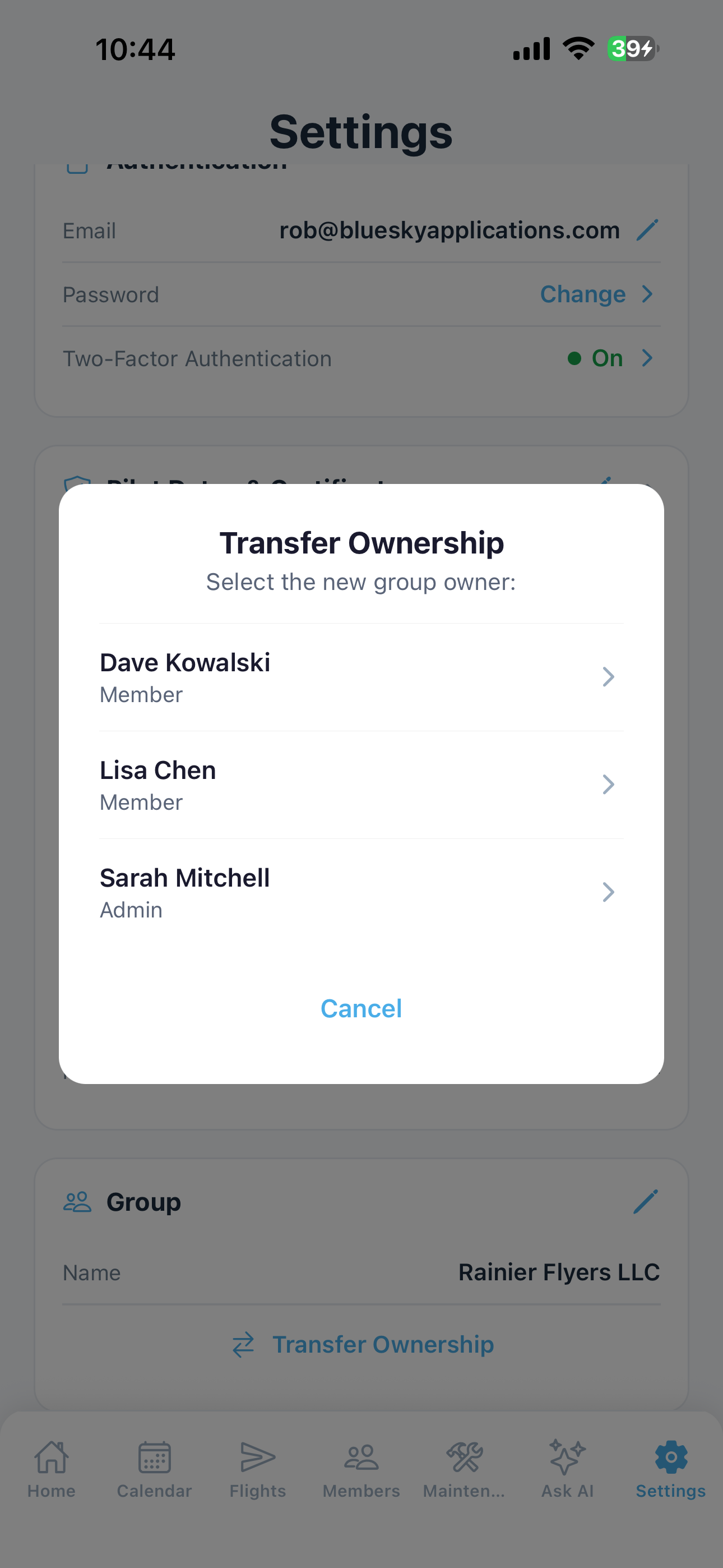
Transferring Ownership (Club plans)
There are two ways to transfer ownership:
From the Members screen:
- Tap your own card to expand it
- Select Transfer Ownership
- Choose the member you want to make the new owner and confirm
From the Settings screen:
- Navigate to Settings
- Select Transfer Ownership from the group management options
- Choose the new owner and confirm
The previous owner becomes an Admin after the transfer.
Tip: If you need to delete your account and you're the group owner, you must first transfer ownership to another member.
Removing Members (Club plans)
Owners and Admins can remove members from the group:
- Tap the member’s card
- Select Remove Member
- Confirm
The removed member’s flights and historical records remain in the group for record-keeping. Any of their outstanding ledger entries also remain — work out unpaid balances before removing if applicable.
Activity Log
Every significant member action — booking deletes, role changes, member removals, ownership transfers, hourly-only toggles — is captured in the group’s activity log. Today the log is viewable by support on request; a self-serve view is on the roadmap. Contact support@blueskyapplications.com if you need to investigate an unexpected change.