Maintenance Tracking
Access your Documents Library and track inspections, ADs, oil changes, and other maintenance items with automatic due-date calculations.
Overview
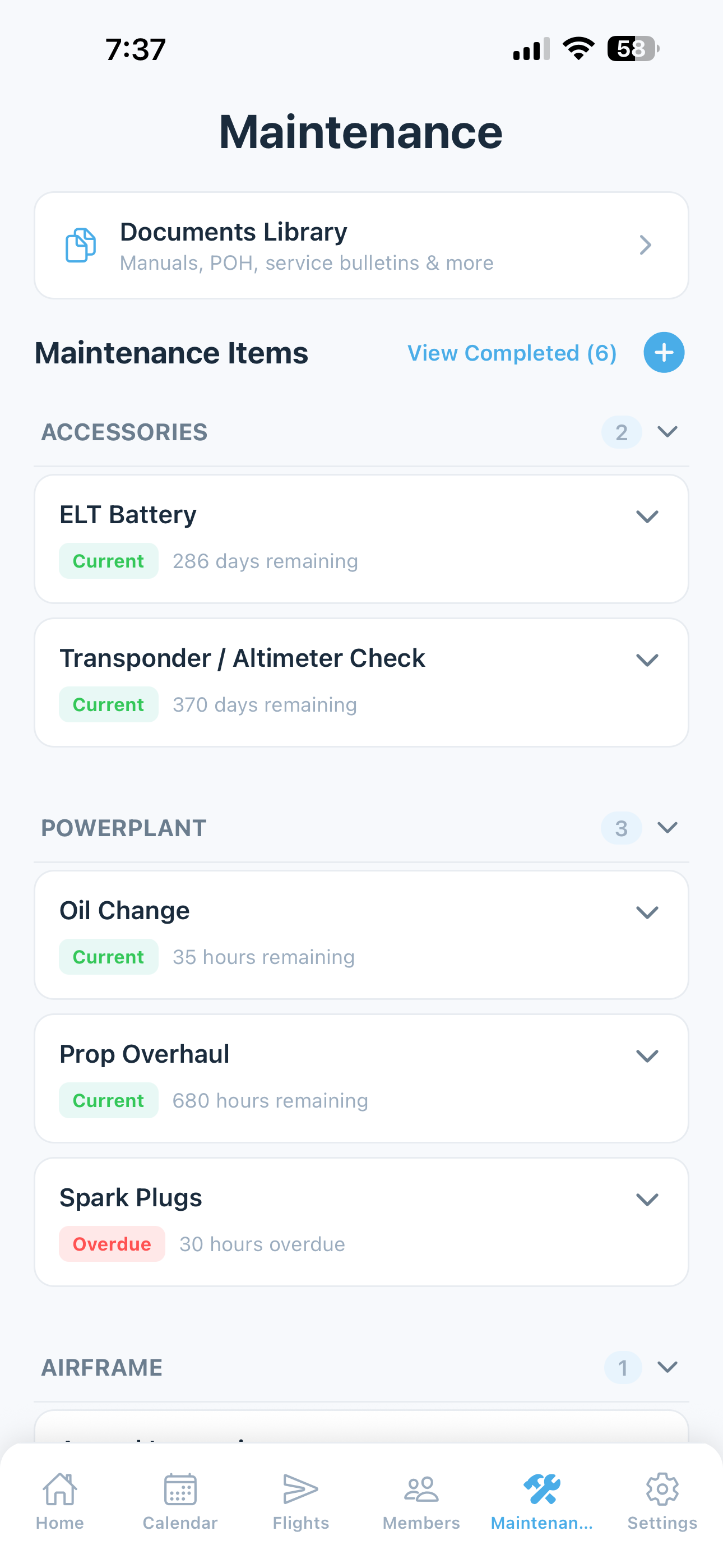
The Maintenance screen is your hub for aircraft documentation and maintenance tracking. At the top of the screen you’ll find the Documents Library button, followed by your scheduled maintenance items, and at the bottom, any open squawks.
This page covers the Documents Library and planned maintenance items. For squawks, see Squawk Reporting.
Documents Library (Paid plans)
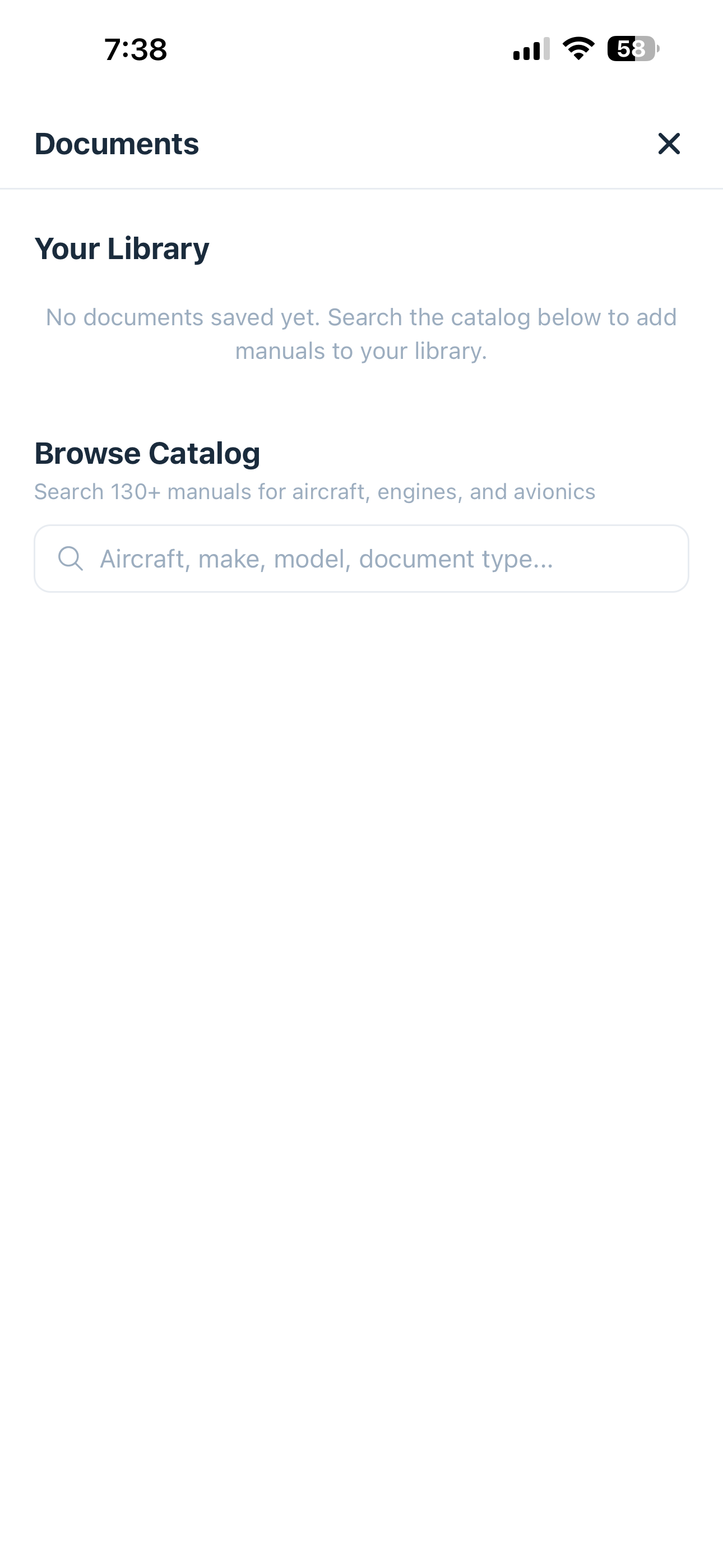
The Documents Library gives you access to your aircraft’s key reference documents directly in the app. Tap the Documents button at the top of the Maintenance screen to open it.
The library includes:
- POH / AFM — Pilot’s Operating Handbook or Airplane Flight Manual
- Engine Manual — manufacturer’s engine manual
- Avionics Operating Manuals — manuals for installed avionics (Garmin, Avidyne, S-TEC, and similar)
- Your uploads — any documents you’ve added (supplements, STCs, insurance certificates, etc.)
To upload a document, tap the + button in the Documents Library and select a file from your device.
The Documents Library is also accessible from the web dashboard, and syncs with your mobile app — anything you upload or bookmark on one is available on the other.
Documents are pulled from our shared database. If you want a copy available offline, save it to your device after opening it.
The Documents Library is available on paid Solo and Club plans. Free tier users will be prompted to upgrade when they tap the Documents button.
Searching Documents
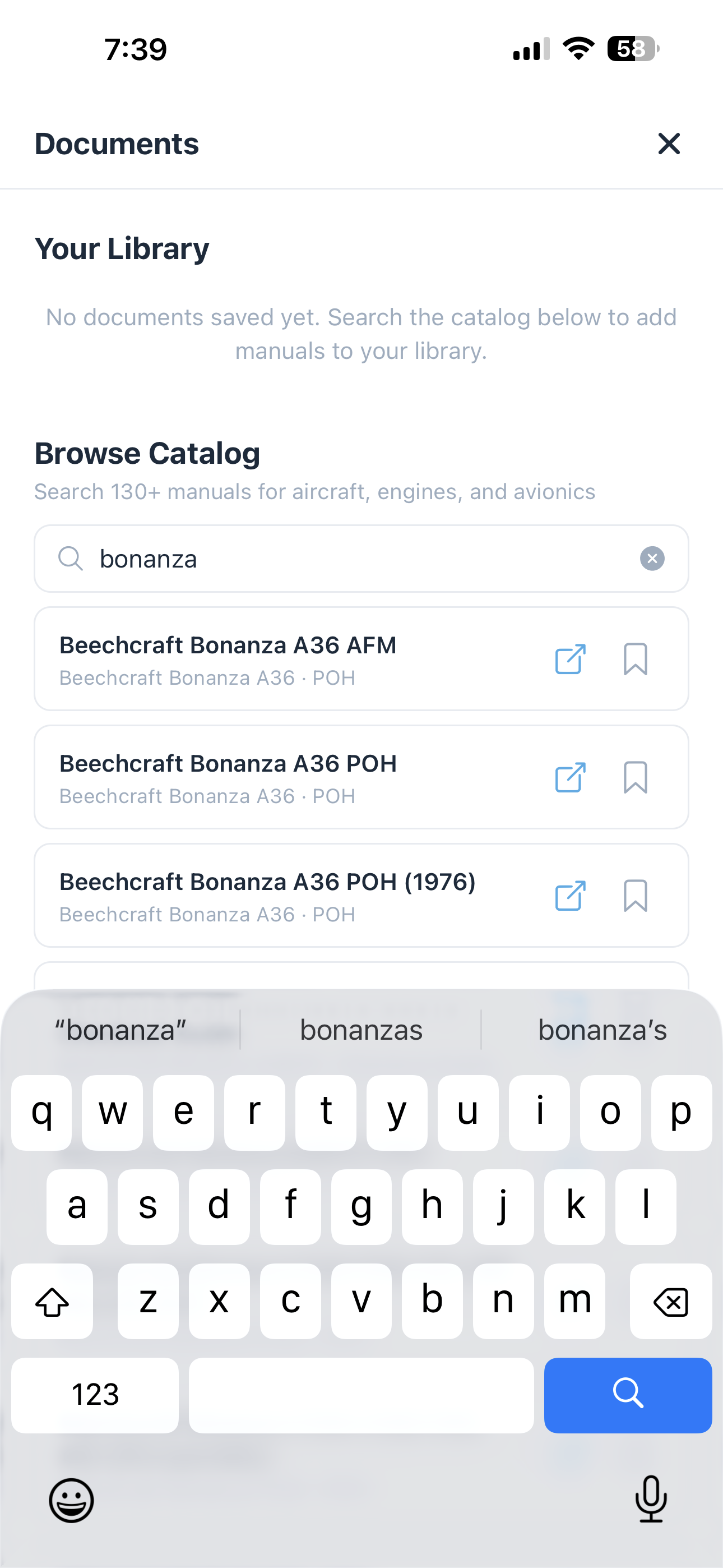
Use the search bar at the top of the Documents Library to find content within manuals — POH sections, procedures, performance tables, etc. The search uses semantic indexing so you can ask “hot start procedure” and find the relevant POH section even if the manual uses different wording.
Asking AI About Your Aircraft
For procedural questions, the AI Assistant often beats document search. Ask “What’s the hot start procedure for my engine?” or “What’s the right power setting for 65% power at 9,000 ft at 2300 RPM?” and it pulls from the relevant manual page automatically.
Scheduled Maintenance Items
Planned maintenance items are tracked by calendar time, tach hours, or both, and 5-by-5 automatically calculates when each item is due.
Adding a Maintenance Item
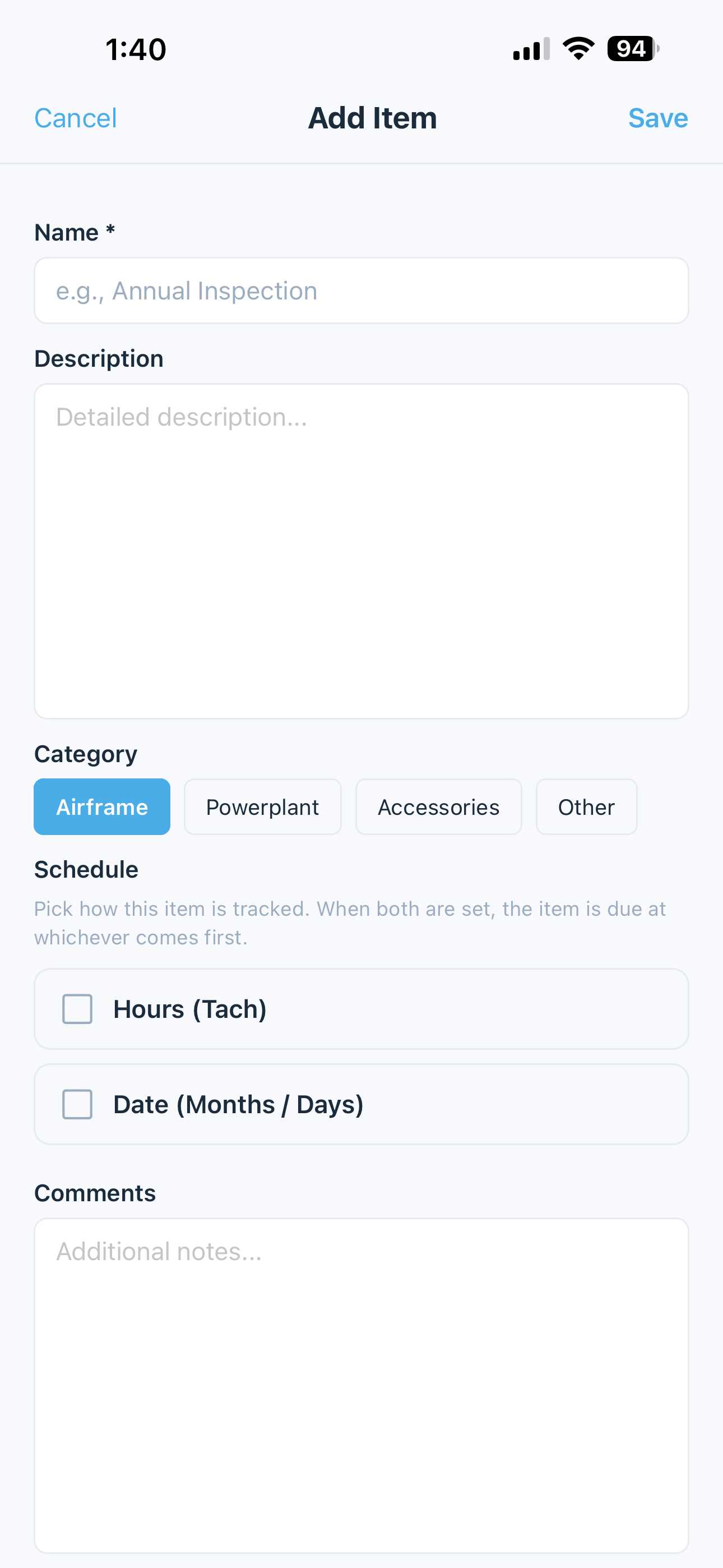
- Tap the + button at the top right of the Maintenance screen
- Fill in:
- Name — what the item is (e.g., “Oil Change”, “Annual Inspection”)
- Description — any extra detail (e.g., AD/SB requirements, compliance notes)
- Category — Airframe, Powerplant, Accessories, or Other
- Triggers — select tach-based, calendar-based, or both. For each trigger, enter the interval and when the item is next due.
- Tap Save
Items are organized by category with collapsible sections — tap any category header to expand or collapse it. Each header shows the count of items in that category.
Tip: The free tier supports up to 5 maintenance items. Upgrade to a paid plan for unlimited items.
Due Date Calculations
5-by-5 calculates when each item is due based on its last completion:
- Calendar-based — due date = last completion date + interval (months or days)
- Tach-based — due tach = last completion tach + interval (hours)
Items are color-coded by status:
- Green — not yet due
- Orange — due within 10 hours or 10 days
- Red — overdue
Upcoming and overdue items also appear as alerts on the home screen.
Completing Maintenance
When a task is performed:
- Tap the item to expand it
- Tap Complete
- Enter the completion date and tach reading (if applicable)
- Add any notes — existing comments are shown so you can append to the history
- Tap Complete — 5-by-5 recalculates the next due date automatically
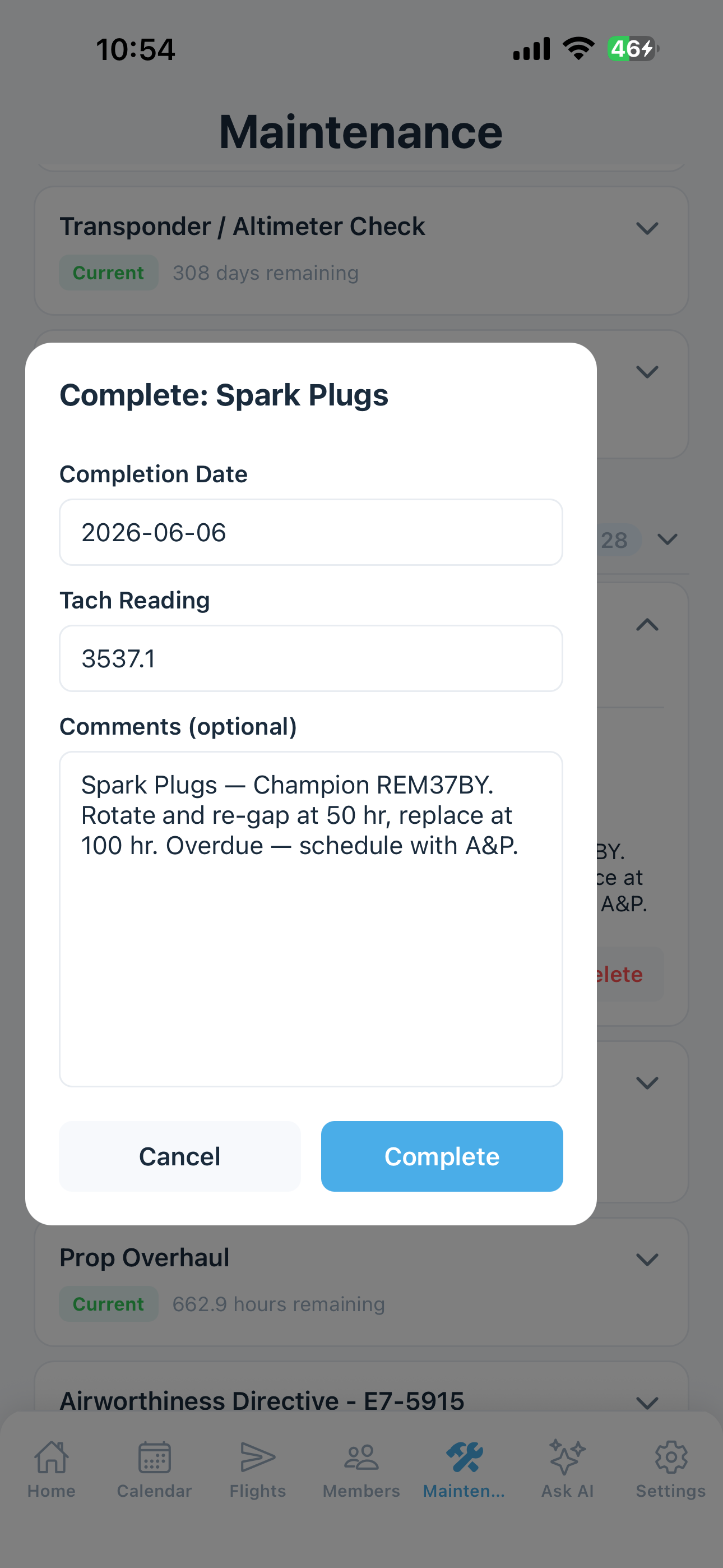
A completion history is saved for each item.
Viewing History
Each maintenance item keeps a record of completions. Tap View Completed at the top of the maintenance list to see past completion dates, tach readings, and notes for each item.
Marking an Item Not Applicable
Some maintenance items don’t apply to your specific aircraft, and the most common case is Airworthiness Directives. The automatic AD import pulls every AD published for your make, model, and engine — but most ADs are scoped to specific serial-number ranges, sub-models, or installed equipment, so a significant share won’t apply to your individual aircraft. Rather than ignore them on the active list (and have them noisily flag as overdue), use Mark as N/A to file them away cleanly. Other examples: a feature you don’t have, or an inspection only required in a different operating environment.
Long-press the item and select Mark as N/A to hide it without deleting it from your records. N/A items still appear in the completion history but don’t show on the active list or affect home-screen alerts.
Automatic AD Import (Paid plans)
5-by-5 can automatically pull Airworthiness Directives (ADs) from the FAA Federal Register based on your aircraft’s make, model, and engine type.
To fetch ADs:
- Go to Settings and confirm your aircraft Make, Model, and Engine are set using the dropdown menus
- Tap Fetch Airworthiness Directives (ADs) — located just below the Aircraft section in Settings
- 5-by-5 searches the Federal Register and shows how many applicable ADs were found
- Tap Fetch ADs to confirm — each AD is created as a maintenance item, auto-categorized as Airframe, Powerplant, or Accessories based on the directive content
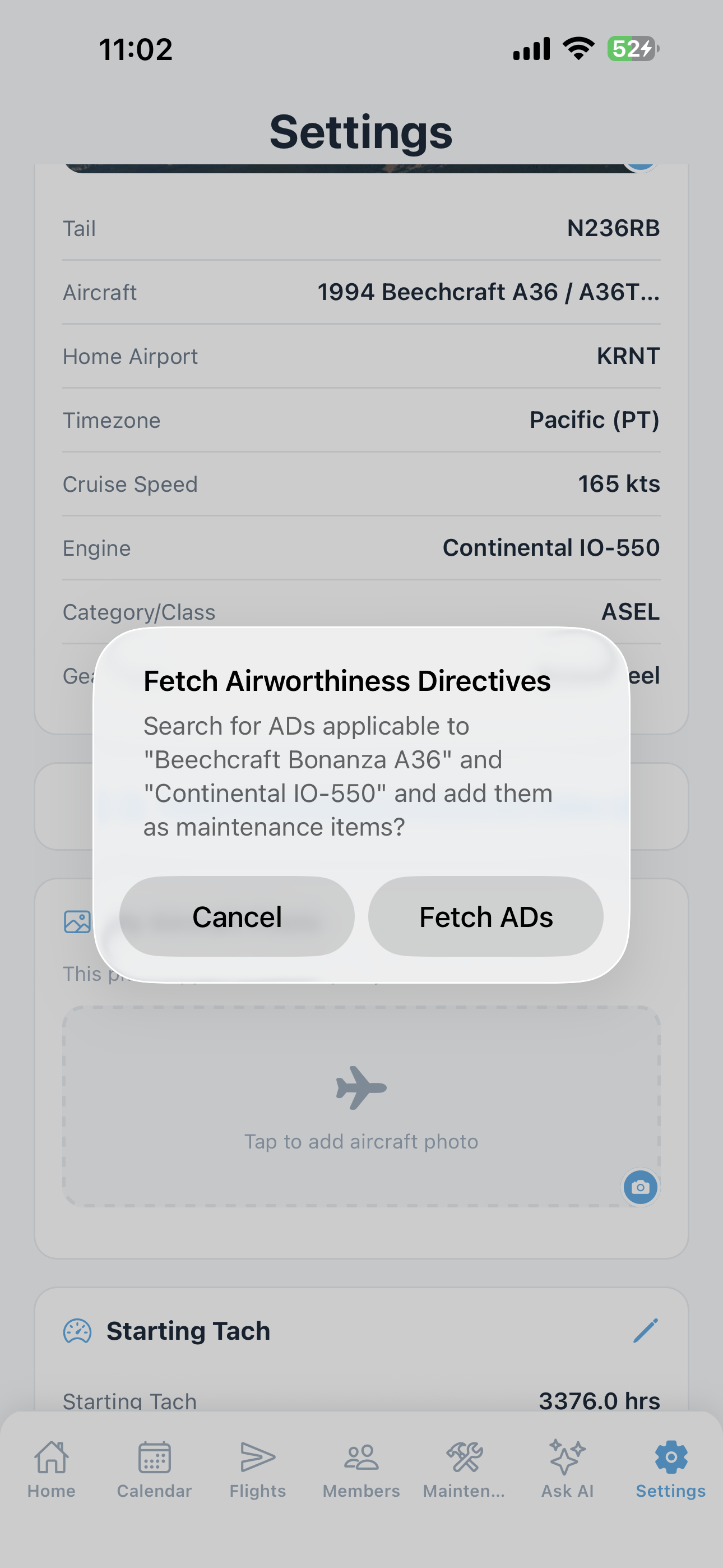
ADs are named using the format “Airworthiness Directive — [document number]” with the full title and abstract in the description field. A link to the Federal Register entry is included in the comments.
Duplicate detection is built in — if you fetch ADs again later to check for new ones, only ADs that don’t already exist in your tracker are added.
Squawks
The bottom of the Maintenance screen shows all open squawks with their severity. Tap any squawk to view details, resolve it, or delete it. Use the + button to file a new standalone squawk (not tied to a specific flight).
When a squawk is filed, the people responsible for maintenance get notified by email automatically — see Squawk Reporting > Email Notifications for who’s on the list.
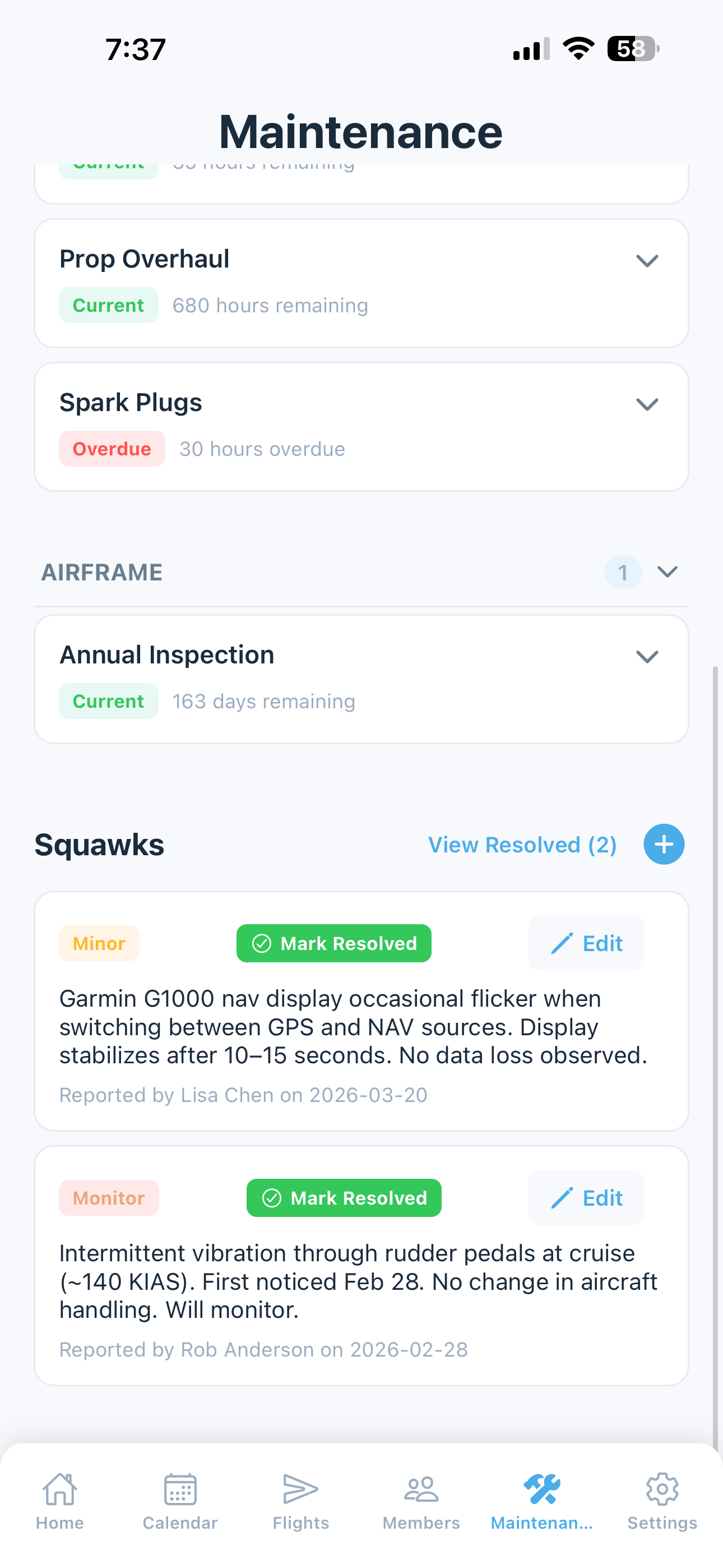
See Squawk Reporting for the full workflow.
Inviting Your A&P Mechanic (Paid plans)
On paid plans, you can give your A&P or IA mechanic limited access to your maintenance records — they can view items, mark them complete, access the Documents Library, and resolve squawks, but they cannot see flights, the ledger, or member contact information.
When invited, the mechanic also automatically receives squawk alert emails — so they hear about new discrepancies the same way you do, without you forwarding anything.
See Members & Roles > A&P Mechanic Access for the full setup.
Important: 5-by-5 maintenance tracking is for convenience only. It is not a substitute for the aircraft's official maintenance logbooks maintained by a certified mechanic or repair station.