Settings
Configure your profile, group, aircraft, subscriptions, MFA, payment options, sales tax, and app preferences.
Overview
The Settings screen is where you configure everything about your personal profile, your group, aircraft, and administrative options. The screen is organized in order from personal settings at the top to administrative settings at the bottom.
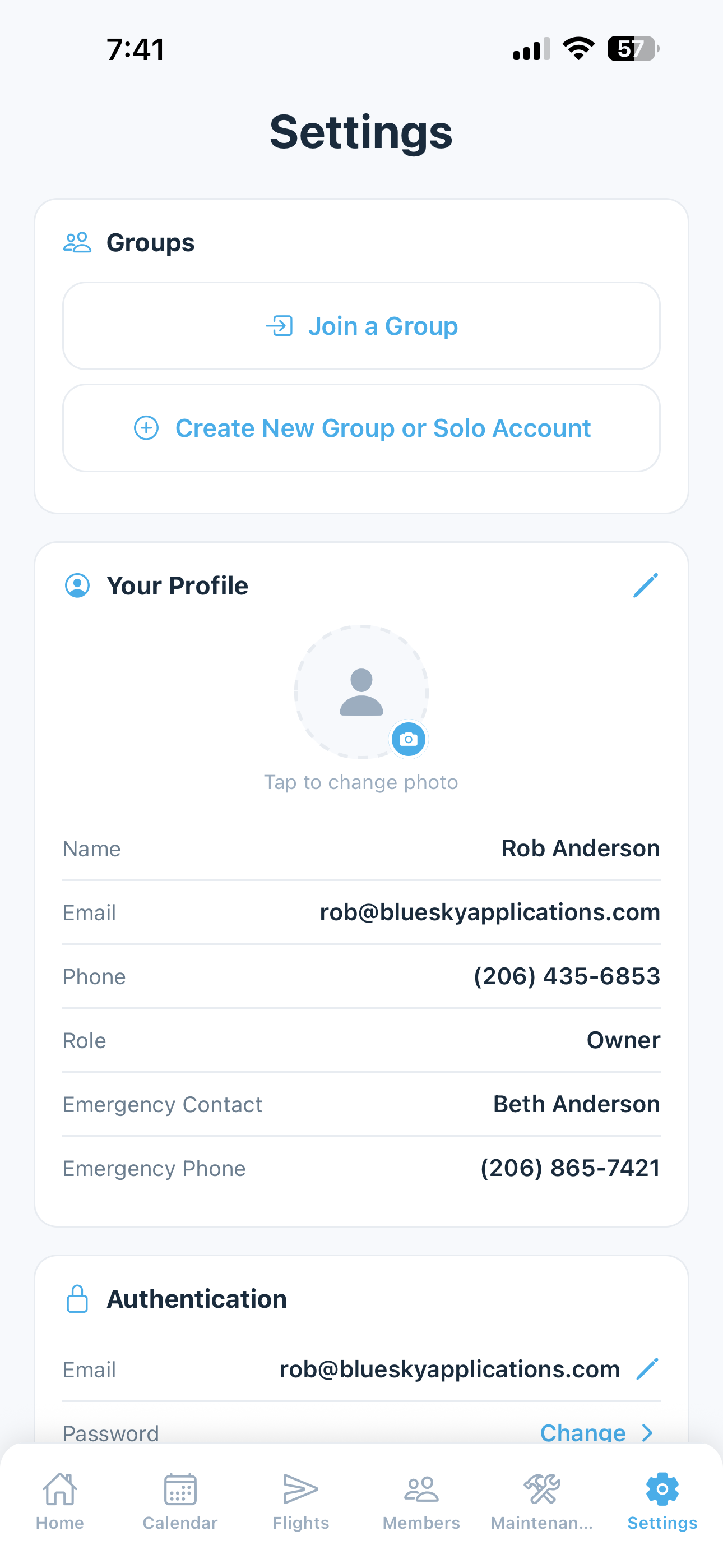
Groups
If you belong to more than one group or account (e.g., you co-own two airplanes with different partners, or you have a Solo account and also belong to a club), 5-by-5 shows a group switcher at the top of Settings. From here you can:
- Switch Group — tap to see all your groups and accounts and switch between them. All data (flights, bookings, maintenance, members) reloads for the selected group.
- Join Another Group — enter an invite code to join an additional group. Your existing profile information (name, phone, emergency contact) carries over automatically.
- Create New Group or Solo Account — start fresh with a new group or Solo account. The onboarding wizard runs again; your personal information carries over automatically so you only fill in what’s new.
5-by-5 remembers your last active group, so you’ll return to it when you reopen the app.
Your Profile
Tap the pencil icon to edit your profile. This is the information visible to other group members on the Members screen.
- Photo — tap your avatar to upload or change your profile photo
- Name — how you appear to other group members
- Email — your account email (displayed here, but changed under Authentication)
- Phone — your phone number, used for quick contact from the Members screen
- Role — your current role in the group (Owner, Admin, or Member)
- Emergency Contact — name and phone number for an emergency contact
- Emergency Phone — the phone number for your emergency contact
- Emergency Contact Relation — relationship to the emergency contact (e.g., “Spouse”)
Authentication
Manage your sign-in credentials and second-factor authentication:
- Email — tap to update the email address associated with your account. A confirmation will be sent to both your old and new email addresses.
- Password — tap Change to set a new password. You’ll be asked to enter and confirm the new password.
- Two-Factor Authentication — MFA is required for every 5-by-5 account, so this row normally shows a green On indicator (you’ll have completed enrollment via the forced flow on your first sign-in). Tap it to view your enrollment details. There’s no in-app way to disable MFA; if you’ve lost access to your authenticator app, see Account Security for the recovery process. The row shows Set Up as a fallback in the rare case the forced enrollment was skipped — tap it to complete enrollment.
Pilot Dates & Certificates
This section is collapsible — tap the header to expand or collapse it. Tap the pencil icon to edit.
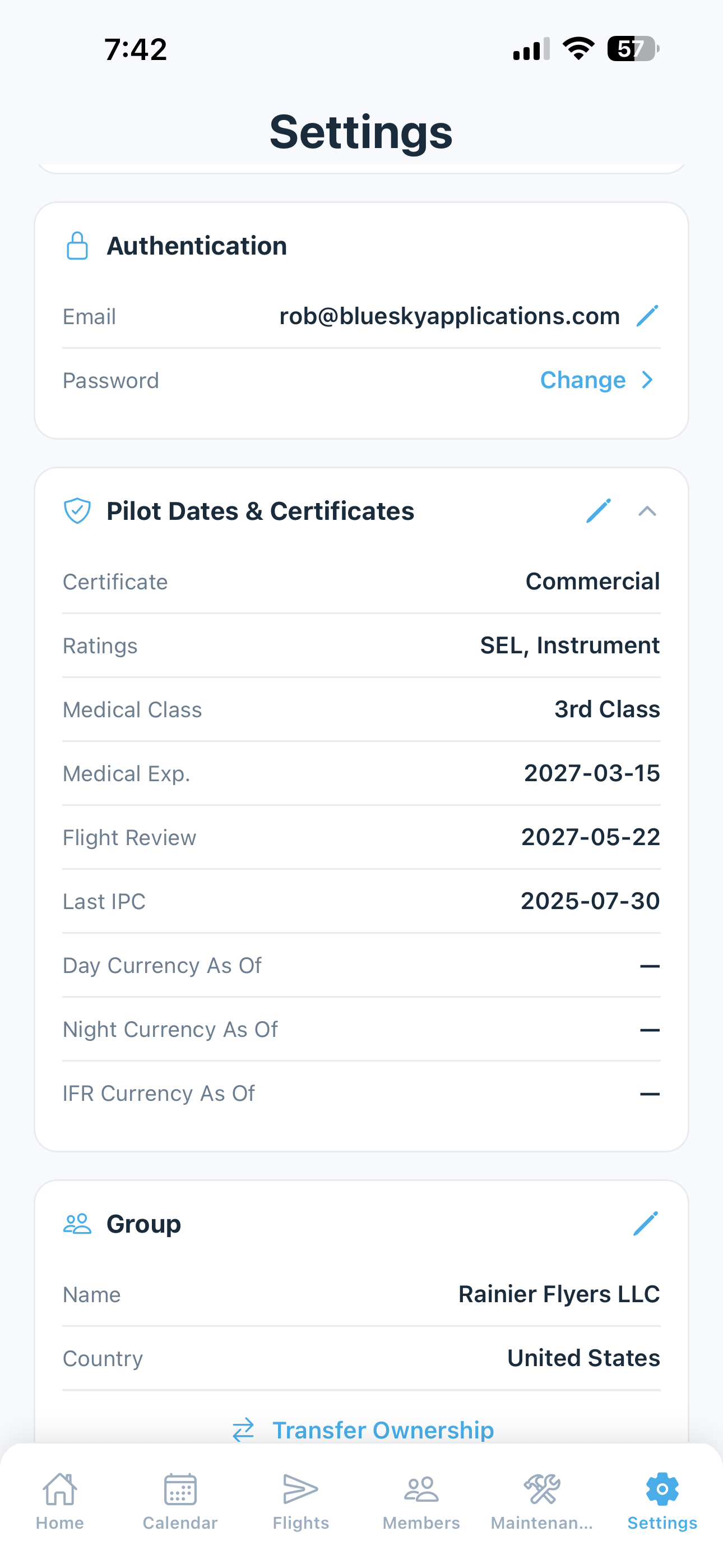
- Certificate Type — your FAA pilot certificate (Private Pilot, Commercial, ATP, CFI, CFII, MEI)
- Ratings — select all that apply (Single-Engine Sea, Multi-Engine, Instrument)
- Medical Class — your FAA medical certificate class (1st, 2nd, 3rd, BasicMed)
- Medical Expiration — the date your medical certificate expires. 5-by-5 uses this for currency tracking and warns you as it approaches.
- Flight Review — the date of your most recent flight review (BFR). Currency expires 24 calendar months after this date.
- Last IPC — the date of your most recent Instrument Proficiency Check (paid plans). This resets your instrument currency.
These dates are used by the Pilot Currency tracker on the home dashboard.
Group
Tap the pencil icon to edit (Owners and Admins only).
- Name — the name of your flying club or partnership, visible to all group members
- Country — used for currency formatting, regulation references, phone validation, and sales tax handling. United States and Australia are supported today.
If you are the group Owner and there are other members in the group, you’ll also see a Transfer Ownership button here. See the Members & Roles page for details on transferring ownership.
Aircraft
Tap the pencil icon to edit the aircraft details (Owners and Admins only).
- Aircraft Photo — the group’s default aircraft photo, displayed at the top of the home screen for all members. Tap to upload or change.
- Tail Number — the aircraft’s registration (e.g., N236RB)
- Aircraft — year, make, and model, selected from the shared Aircraft Catalog dropdown menus. Make and model drive AD lookups, sensible default cruise speed, and category/class. If your make/model isn’t listed, choose Other — contact support and we’ll add it.
- Engine — engine make and model, selected from dropdowns. Used for engine-specific AD lookups.
- Home Airport — the ICAO code for your home airport (e.g., KRNT). 5-by-5 looks up the airport name and uses it for weather, route calculations, and default settings.
- Timezone — automatically set based on your home airport, but can be changed manually
- Cruise Speed — the aircraft’s typical cruise speed in knots. Used to estimate flight times when entering routes in bookings and flight logs.
- Category/Class — the aircraft’s FAA category and class (e.g., ASEL, AMEL). Used for currency tracking.
- Gear Type — Nosewheel or Tailwheel. Tailwheel aircraft require full-stop landings for day passenger-carrying currency per FAA regulations.
- Time Tracking — choose Tach, Hobbs, or Airswitch as the basis for logging flight duration. This determines the label shown on the engine time banner, which fields appear on the flight log form, and how tach cascade management works. Pick the one your aircraft is set up to record by — most piston singles use Tach; many newer installations and rentals use Hobbs; some experimentals and modern avionics use Airswitch (which counts only when the wheels are off the ground).
Fetch Airworthiness Directives
Below the aircraft card, Owners and Admins can tap Fetch Airworthiness Directives (ADs) to automatically pull applicable ADs from the FAA Federal Register. 5-by-5 searches based on your aircraft’s make/model and engine type, then creates maintenance items for each AD. Items are auto-categorized as Airframe, Powerplant, or Accessories based on the directive content. See the Maintenance Tracking page for more details.
My Aircraft Photo
Each member can set their own personal aircraft photo that appears at the top of their home screen, overriding the group’s default photo. This is purely cosmetic — it only affects what you see on your own dashboard.
- Upload — tap to select a photo from your device
- Revert to Group Photo — if you’ve set a personal photo, this button removes it and reverts to the shared group photo
Starting Tach
(Owners and Admins only)
This sets the baseline for 5-by-5’s tach tracking system. All flight logging builds on this starting point.
- Starting Tach Reading — the specific tach time you want to begin tracking from (e.g., 1247.5)
- As of Date — the date this tach reading was recorded
On paid plans (Solo and Club), the starting tach is the foundation for tach cascade management — 5-by-5 automatically maintains an unbroken tach continuum from this point forward. When you insert a flight between existing flights, the app will ask whether you want to shift earlier flights back or later flights forward to preserve continuity. On the free tier, the starting tach is stored as a reference point, but 5-by-5 does not actively manage tach continuity between flights.
Important: On paid plans, changing the starting tach after flights have been logged will shift all recorded tach values to maintain continuity. 5-by-5 will warn you before making this change.
Import Historical Flights
(Owners and Admins only)
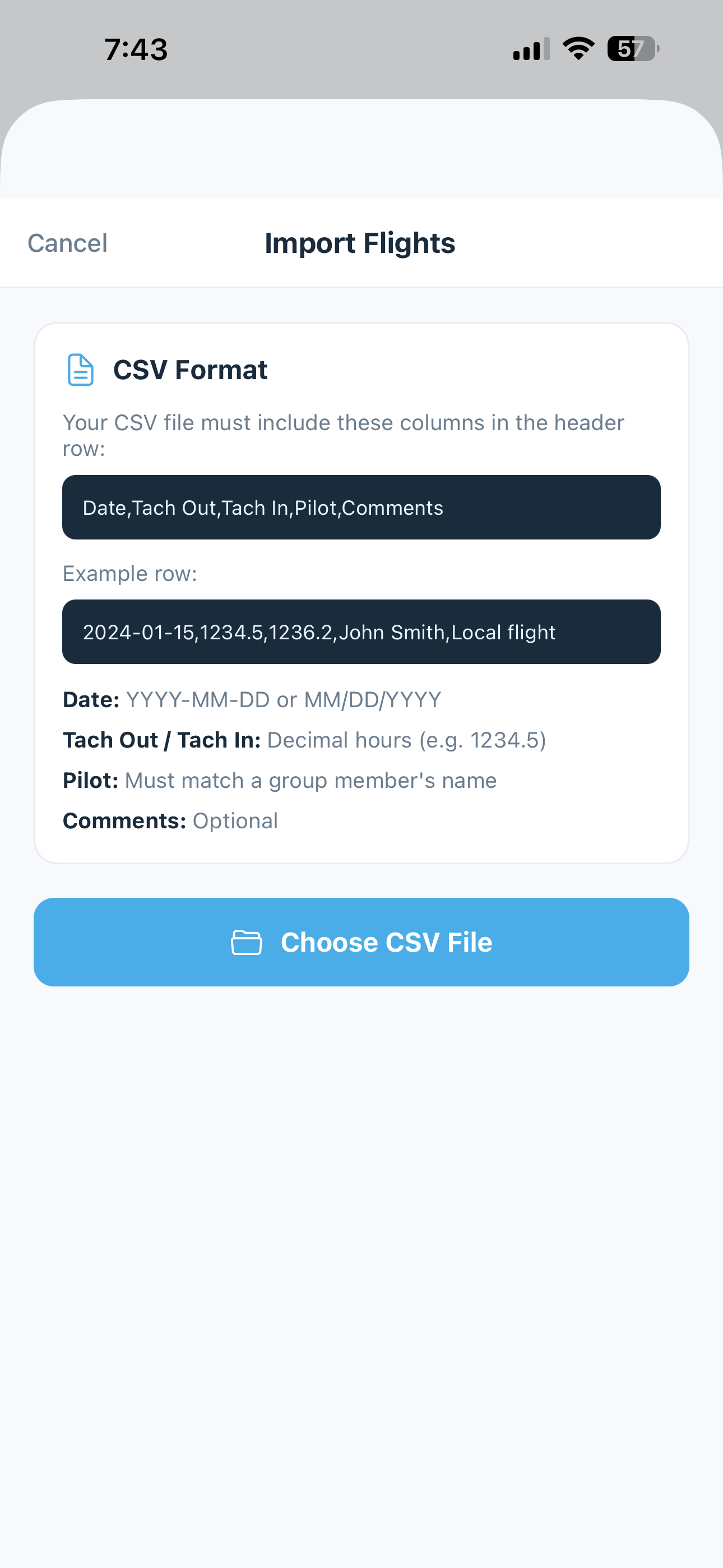
If you have historical flight data from before you started using 5-by-5, you can bulk import flights via a CSV file. ForeFlight and Garmin Pilot logbook exports are detected and parsed automatically, as is 5-by-5’s native CSV template.
- Tap Import Historical Flights (CSV)
- Select your CSV file from your device
- 5-by-5 validates each row and flags any errors
- Review the import summary and any validation issues
- Confirm to import the flights
See Importing Data for column requirements, format details, and how tach cascade handles inserts.
Subscription
View and manage your 5-by-5 subscription plan.
- Plan — your current tier (e.g., Solo, Club, or Free)
- Status — whether your subscription is active and when it expires
- Billing — whether you’re on monthly or annual billing (paid tiers only)
- Upgrade Plan — if on the free tier, tap to upgrade via Stripe Checkout
- Manage Subscription — if on a paid tier, tap to open the Stripe Customer Portal where you can update your payment method, switch billing periods, update member count, view invoices, or cancel
See Billing & Subscriptions for full details.
Member Monthly Billing
(Club plans — Owners and Admins can edit)
These settings control how 5-by-5 calculates estimated monthly costs for each contributing member on the home dashboard.
- Hourly Rate — the per-hour rate your group charges for flying time
- Rate Type — Wet (fuel included in the hourly rate) or Dry (fuel billed separately)
- Max Booking Length — the maximum number of days a member can book the airplane in a single booking
- Monthly Fixed Cost — a fixed monthly cost shared across all members for hangar, insurance, reserves, etc. See Fixed Expense Items below for the line-item breakdown.
The hourly rate and monthly fixed cost are used to calculate the Estimated Monthly Bill shown on each member’s home dashboard.
Not every member contributes to the fixed-cost split. Members flagged as Hourly billing only on the Members screen pay only for the hours they fly and are excluded from the Monthly Fixed Cost denominator — useful for guest pilots, infrequent flyers, or hangar managers who don’t want a base monthly charge. Mechanics are also excluded by default. See Members & Roles > Hourly-Only Members for how to flag a member.
Fixed Expense Items
(Club plans — Owners and Admins can edit)
If you want to break down your monthly fixed cost into specific line items so members understand what they’re paying for, tap Set up fixed expense breakdown under the Monthly Fixed Cost row.
For each line item, enter:
- Name — e.g., “Hangar Rent”, “Insurance Premium”, “Engine Reserve”
- Monthly Amount — the dollar amount per month
- Subject to sales tax — check if the line item is taxable in your jurisdiction. The per-member preview shows the post-tax amount when checked.
The total of all line items replaces the single Monthly Fixed Cost figure. Each member’s share is the total divided by the number of fixed-share members (mechanics and hourly-only members are excluded from the denominator). The per-member breakdown is shown live as you edit so you can see exactly what each member will see on their bill.
Tip: The line-item breakdown shows up on the Finances page on the web dashboard too, and gives members visibility into why their monthly fixed share is what it is. Clubs that itemize tend to get fewer "why does my bill say $850?" questions from members.
Sales Tax Authorities
(Club plans, Owners and Admins only)
If your jurisdiction charges sales tax on aircraft hourly rates or fixed expenses, configure your tax authorities here:
- + Add Authority — name (e.g., “WA State Sales Tax”), rate (e.g., 6.5%)
- Multiple authorities can be stacked (e.g., state + city)
- The combined rate is applied to flight charges (always) and to fixed expense items flagged as taxable
Taxable charges are shown post-tax on member invoices and the Finances page. Members see a sales tax line item separately so the tax is transparent.
US groups configure state and local sales tax here. Australian groups configure GST (10%). Other jurisdictions are not directly supported today.
Payment Settings
(Club plans, Owners and Admins only)
Configure how members pay their monthly invoices:
- Payment Due Days — how many days after the bill is posted the payment is due (e.g., Net 30). Shown on member invoices.
- Venmo / PayPal / Zelle — display these as alternative payment methods on the invoice email. Members can pay through these channels and the treasurer records the payment manually in the ledger.
Detailed Stripe Connect setup (the more powerful, automated ACH/card payment option) is done from the web dashboard. See Online Payments and Finances.
Calendar Sync (Paid plans)
Sync your bookings to your phone’s built-in calendar (Apple Calendar, Google Calendar, etc.).
- Enable Calendar Sync — toggle on to activate automatic syncing. When enabled, all bookings appear as events in your phone’s calendar and update automatically when bookings are created, modified, or deleted.
- Sync All Bookings Now — tap to do a one-time sync of all existing bookings to your calendar. Useful if you just enabled sync and want to backfill existing bookings.
Calendar Sync requires a paid plan (Solo or Club). Free tier users will be prompted to upgrade when they enable it.
Communications
Control what emails you receive from 5-by-5.
- Product tips & updates — periodic emails about new features, tips, and getting the most out of 5-by-5. On by default.
- Promotions & partner offers — occasional emails about deals, partnerships, and special offers from carefully selected partners. Off by default. We don’t sell your data.
Transactional emails (invoices, receipts, squawk alerts, invites, password resets) cannot be disabled — they’re required for the product to function. See Email Notifications for the full list and how to allow-list sender addresses so they don’t end up in spam.
Send Feedback
Tap to compose an email to the 5-by-5 team with feedback, bug reports, or feature requests. Goes to support@blueskyapplications.com.
Sign Out
Signs you out of your account on this device. You can sign back in at any time.
Delete Account
Permanently deletes your account and all associated data:
- All your flights, bookings, profile information, and currency events are permanently removed
- If you are the last member in a group, the entire group and aircraft data is also deleted
- If other members exist and you are the Owner, you must transfer ownership first
Warning: Account deletion is permanent and cannot be undone. Make sure you have any records you need before deleting. Export your flight log (Flights screen → menu → Export CSV) first if you want a copy of your records.