Squawk Reporting
Report and track aircraft discrepancies with severity levels, photos, and automatic email alerts to mechanics.
Overview
Squawks are a way to report and track aircraft discrepancies — anything from a minor cosmetic issue to a grounding safety concern. 5-by-5 makes it easy to report squawks and automatically notifies the right people the moment a discrepancy is filed.
Where Squawks Appear
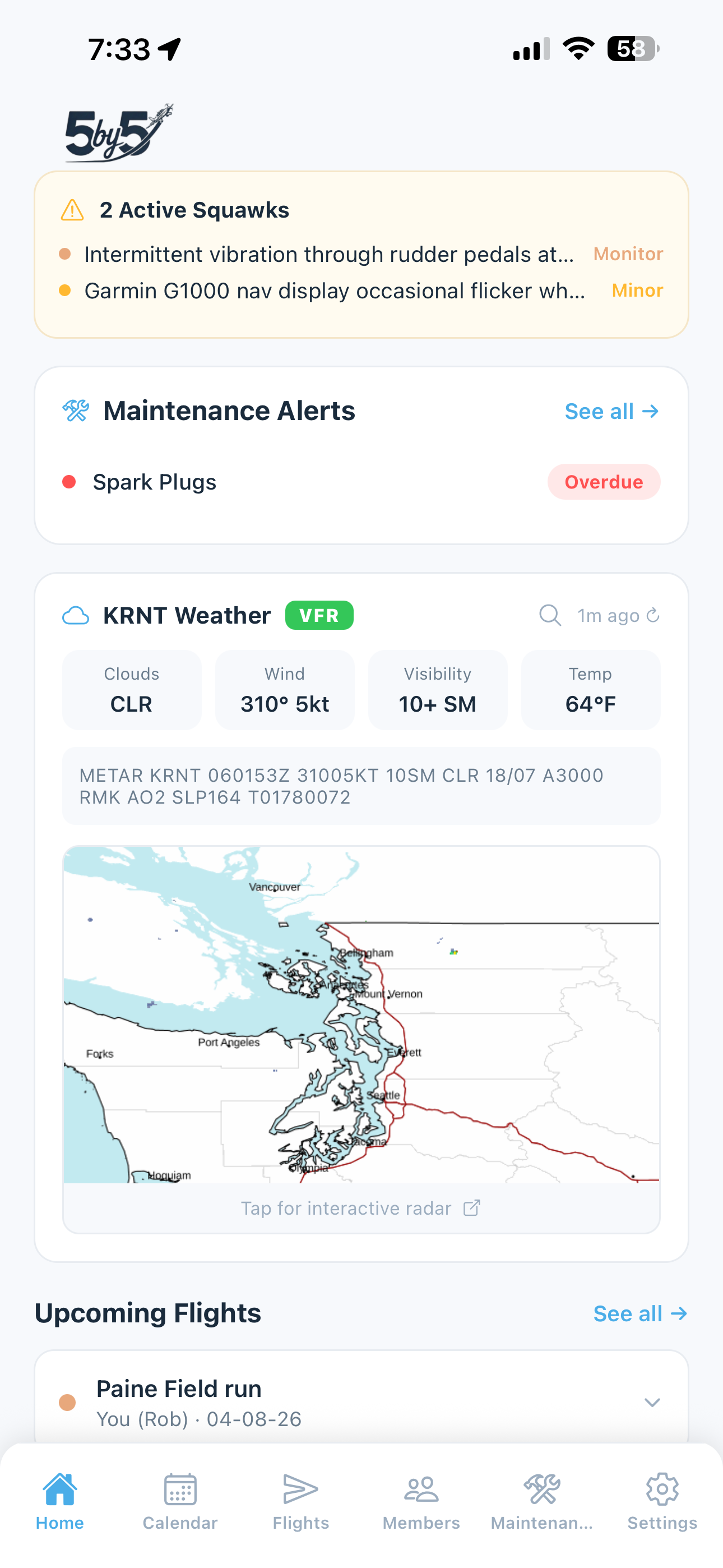
Active squawks are visible in several places:
- Home dashboard — grounding squawks in the red banner, non-grounding squawks in the yellow squawks banner
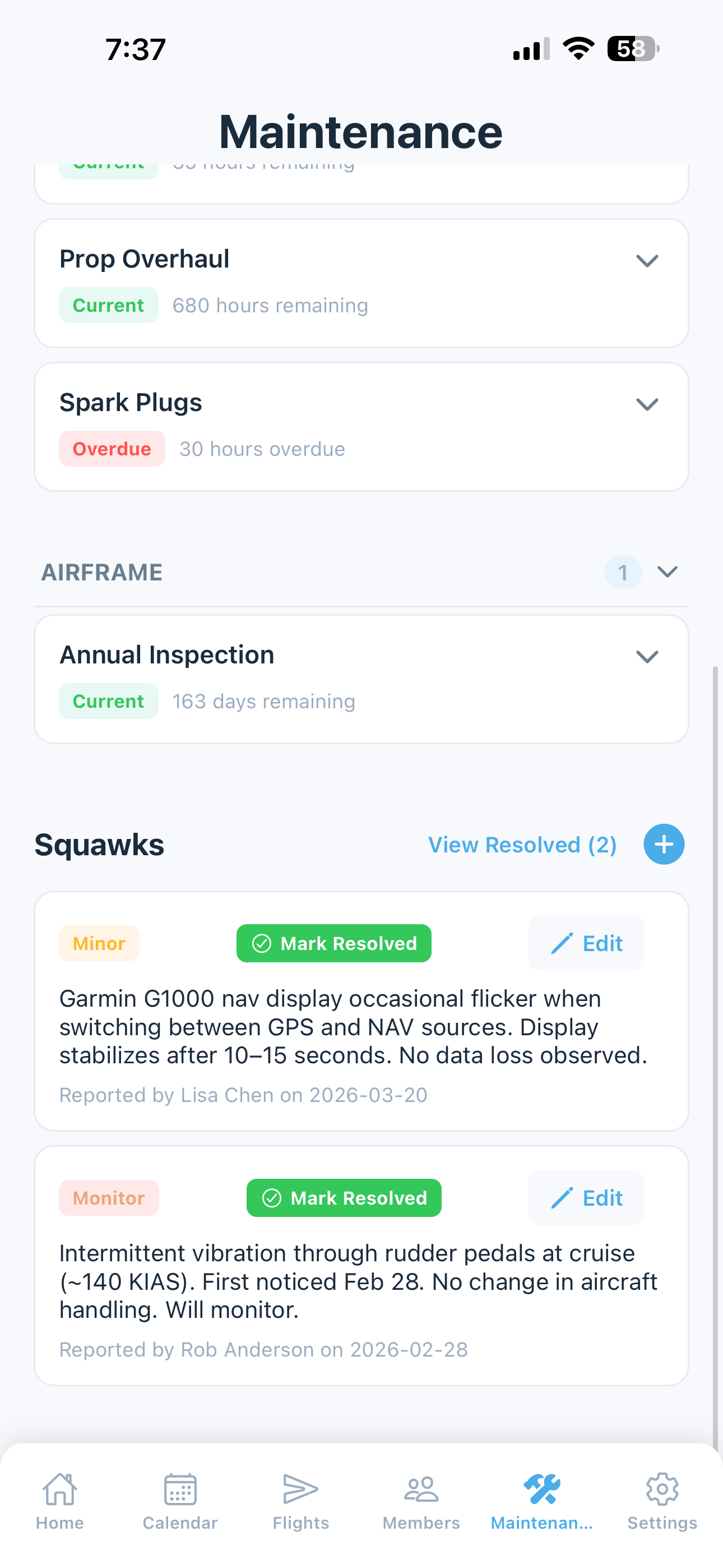
- Maintenance screen — full list with open and resolved sections
- Flight cards — flights with associated squawks show a maintenance badge
- Web dashboard Maintenance page — full management view for owners, admins, and mechanics
- Email — new squawks are sent automatically to mechanics and maintenance officers (see Email Notifications below)
Reporting a Squawk
You can report squawks in two ways:
From a Flight
When logging a flight, scroll to the Squawks section:
- Tap Add Squawk
- Describe the issue
- Select the severity level
- Optionally attach a photo (paid tiers only)
Standalone
From the Maintenance screen, you can add squawks that aren’t tied to a specific flight:
- Scroll to the Squawks section at the bottom of the page
- Tap the + button to add a new squawk
- Fill in description, severity, and optional photo (paid tiers only)
You can also file a squawk from the web dashboard via the Maintenance page → Active Squawks → + Report.
Squawk Photos (Paid plans)
Paid plans (Solo and Club) can attach photos to squawk reports. This is especially useful for documenting visible issues like:
- Cracks or damage
- Fluid leaks
- Tire condition
Photos also make it easy to share the issue directly with your mechanic — a quick snapshot from the ramp is often worth more than a written description.
Free tier users can report squawks with text descriptions only.
Severity Levels
Each squawk is assigned one of three severity levels:
- Minor — cosmetic or non-urgent issues (e.g., a small scratch, worn seat fabric)
- Monitor — items to watch but not immediately grounding (e.g., slight oil seepage, intermittent avionics alert)
- Grounding — issues that make the aircraft unairworthy or unsafe to fly (e.g., flat tire, cracked windshield, engine vibration)
Severity drives:
- Where the squawk appears on the home screen (grounding gets the red banner; monitor and minor go in the yellow squawks banner)
- The color of the email alert header (red, orange, or amber)
- Whether the airplane is effectively grounded for other members
Grounding Alerts
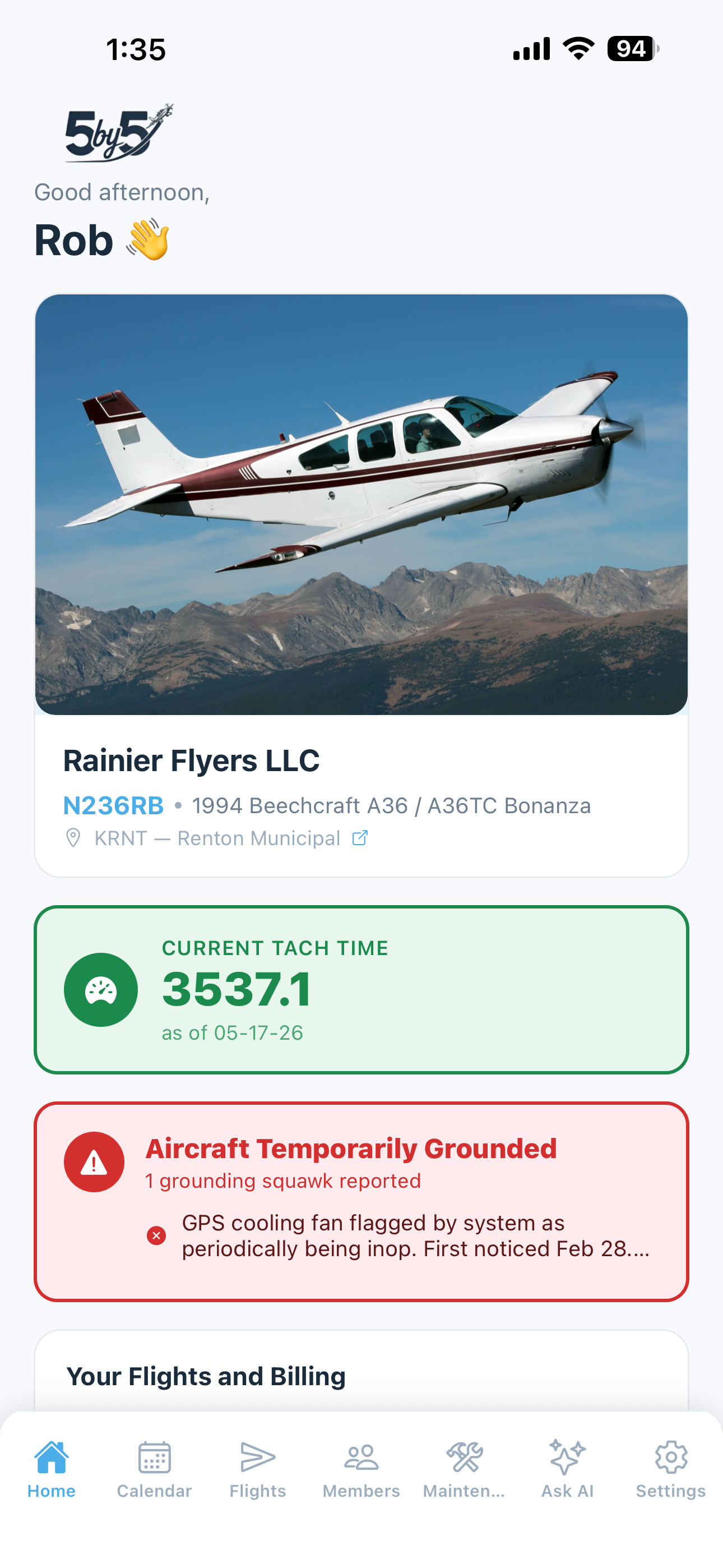
When a squawk is marked Grounding, a bold red banner appears on every group member’s home dashboard showing:
- The total count of grounding squawks
- A description of each grounding issue
This ensures that no one flies the airplane while a grounding issue is active.
Email Notifications (Paid plans)
The moment a squawk is filed — from mobile flight logging, the standalone reporter, or the web dashboard — 5-by-5 automatically emails the people responsible for maintenance.
Who Receives It
To: every member with role = Mechanic OR a title containing “Maintenance” (e.g., “Maintenance Officer”, “Maintenance Coordinator”). Case-insensitive — minor title variations are still matched.
BCC: every Owner and Admin in the group, so the alert doesn’t fall through the cracks if the mechanic is away.
If a group has no mechanic and no one with “maintenance” in their title (common for small partnerships), the BCC list is promoted to the To: line so owners and admins receive it directly.
What the Email Contains
- Aircraft tail number
- Squawk severity (with the email header color-coded — red for grounding, orange for monitor, amber for minor)
- Description of the issue
- Reporter’s name
- Link to view the squawk photo (if one was attached)
- Link back to the maintenance screen on the web dashboard
What if I’m Not Getting Squawk Alerts?
If you’re listed as a mechanic or maintenance officer but not receiving alerts, the most likely cause is your email provider filtering the message into spam. The first email from maintenance@blueskyapplications.com typically lands in junk in Gmail and Outlook.
The fix:
- Check your spam folder for an email from
maintenance@blueskyapplications.com - Mark it Not Spam
- Add the sender to your contacts
See Email Notifications > Keeping 5-by-5 Emails Out of Spam for provider-specific instructions.
Opting Out
Squawk alerts are transactional and cannot be disabled in the Communications settings. If you no longer want to receive them, ask the Owner to remove your “Maintenance Officer” title or change your role away from Mechanic. The treasurer-style “operationally important” emails stay on by design — the assumption is that if you’re listed as responsible for maintenance, you want to hear about it.
Resolving Squawks
When a squawk has been addressed:
- Go to the Maintenance screen (mobile or web)
- Navigate to the Squawks section at the bottom of the page
- Tap to expand the target squawk and select Mark Resolved
- Add optional Resolution Notes describing how the issue was addressed
- Attach an optional resolution photo (paid plans — Solo and Club)
- Tap Save to complete the resolution
Resolved squawks can be viewed by tapping the View Resolved button next to the + icon.
Resolution does not trigger a notification email — the resolution is captured in the audit history but isn’t pushed to recipients.
Editing a Squawk
If a squawk was filed with a typo or the severity needs adjusting:
- Open the squawk in either the mobile app or the web dashboard
- Tap Edit
- Update the description, severity, or attached photo
- Save
Editing the severity from non-grounding to grounding (or vice versa) triggers immediate UI updates everywhere — the grounding banner appears or disappears as appropriate. A second alert email is NOT sent on edit, by design, to avoid duplicate noise.
Deleting a Squawk
To remove a squawk entirely (rather than resolving it):
- Open the squawk
- Tap the trash icon
- Confirm
Deletion is logged in the activity log for the group.