Home Screen
Your airplane's status at a glance — tach, weather, maintenance alerts, currency, member balances, and pending payments on one screen.
Overview
The home screen is the first thing you see when you open 5-by-5. It puts everything that matters front and center so you can assess your airplane’s status in seconds.
Aircraft Header
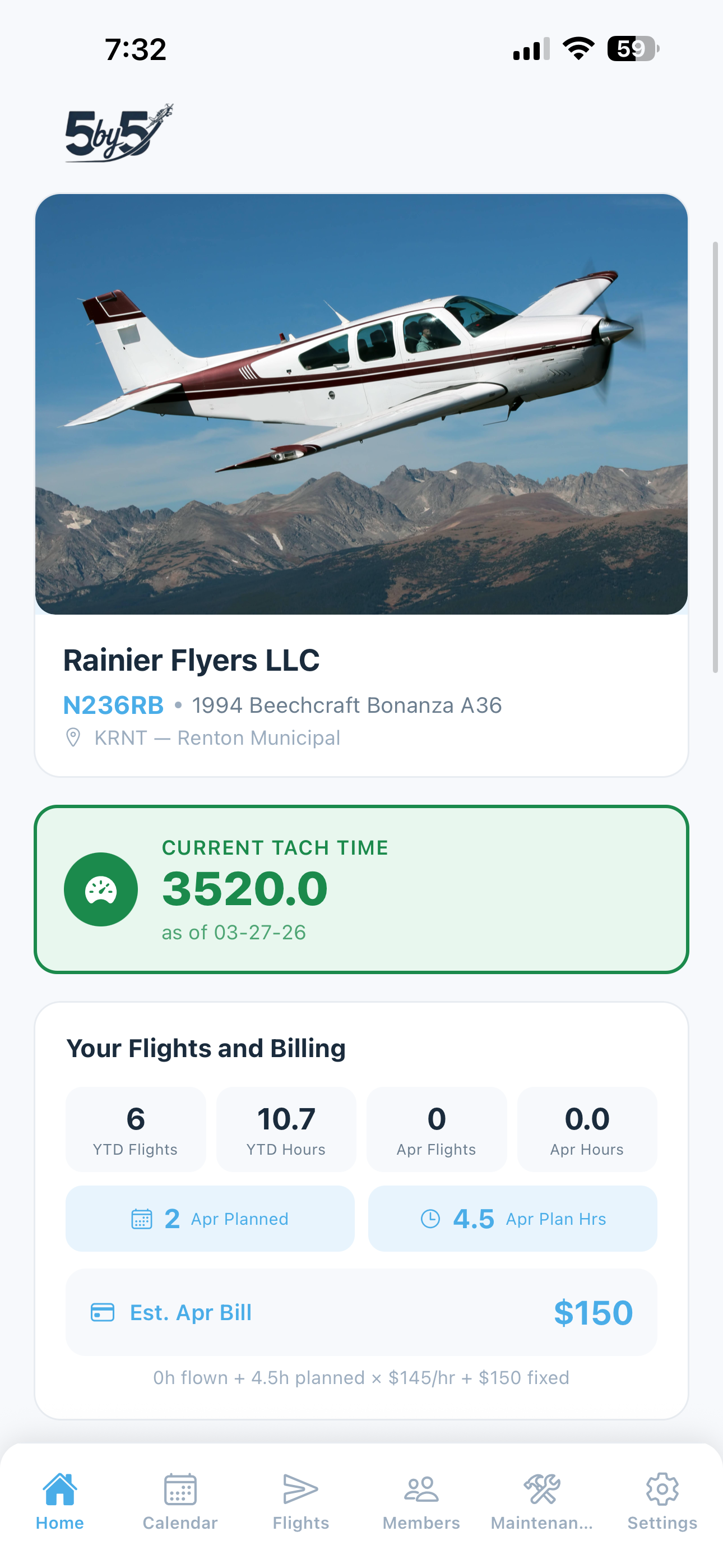
At the top of the screen:
- Group or account name and tail number
- Aircraft type (year, make, model)
- Home airport with name
- Aircraft photo — the group’s shared photo, or your personal photo if you’ve set one in Settings
Engine Time Banner
A green banner showing the current engine time and when it was last updated. This updates every time a flight is logged.
The banner label adapts to your group’s Time Tracking setting (Settings > Aircraft > Time Tracking). Tach-based groups see “Current Tach Time”; Hobbs-based groups see “Current Hobbs Time”; Airswitch-based groups see “Current Airswitch Time.” The icon and styling are the same in every case.
Grounding Banner
If any squawk is marked Grounding, a bold red banner appears at the top with the count and details of each grounding issue. This ensures no one flies the airplane while a grounding issue is active.
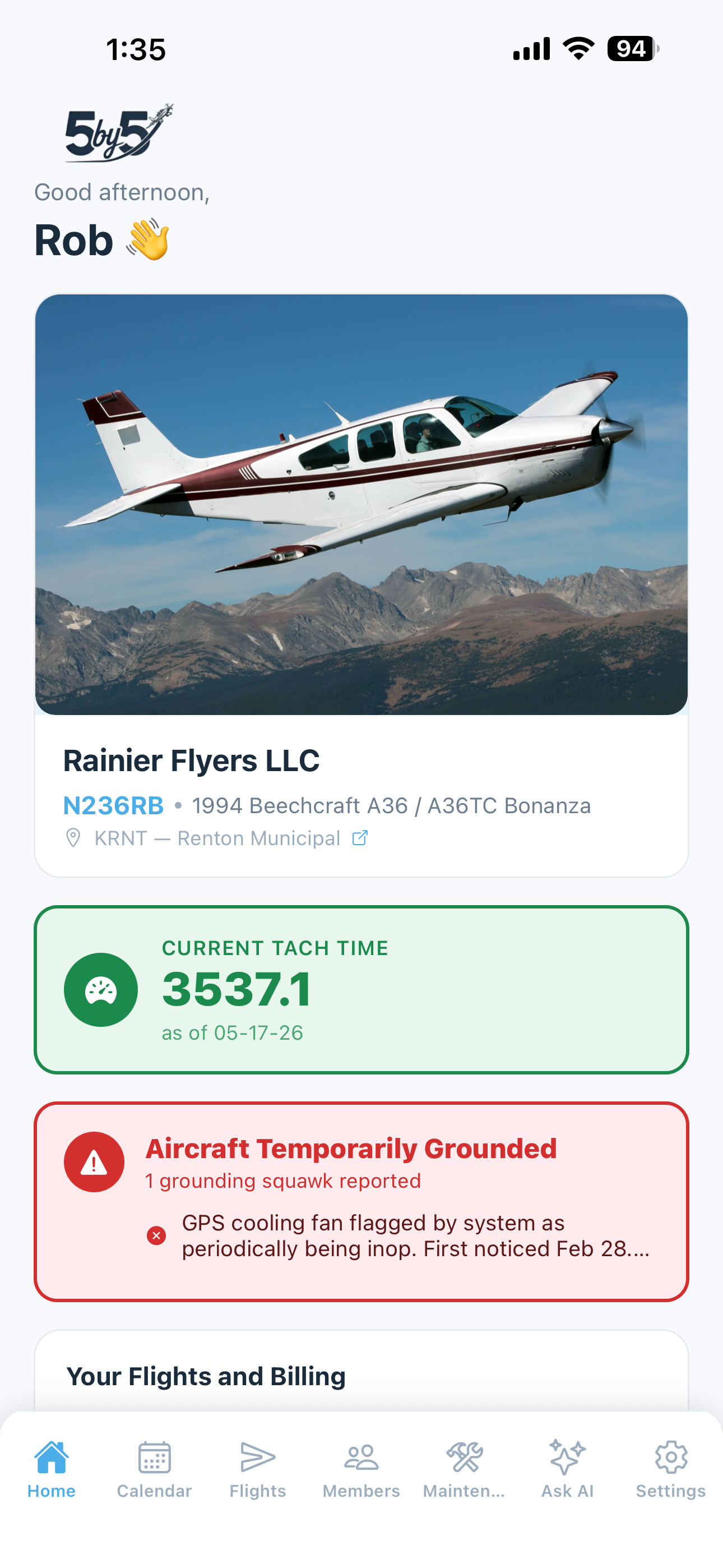
When any member files a grounding squawk, every member of the group sees this banner instantly. Mechanics and members with a Maintenance Officer title (as well as Admins & Owners) also receive an email alert within seconds so they can act on it promptly. See Squawk Reporting for details.
Maintenance Alerts
Shows any maintenance items that are due within 10 hours or 10 days, or are overdue. Each alert is color-coded by urgency. Tap See all to go to the full Maintenance screen.
Squawks Banner
Lists active non-grounding squawks with severity indicators. Minor and monitor-level issues stay visible here without triggering the full red grounding alert.
Your Flights and Billing
A 4-box summary of your personal flight stats:
- YTD Flights — total flights you’ve logged this year
- YTD Hours — total flight hours this year
- This Month — flights logged this month
- Month Hours — hours flown this month
Below the stats, your upcoming booked flights and hours for the rest of the month are shown, along with an estimated monthly bill based on hours flown, planned hours, your group’s hourly rate, and any fixed monthly costs.
On Solo plans, this section is titled Your Flights with no billing row if no hourly rate is configured.
Hourly-Only Members
If you’ve been flagged as Hourly billing only by your group admin (on your member card in the Members tab), you’ll see flight-time charges in this estimate but no fixed-cost share. This is generally reserved for infrequent pilots who pay hourly but don’t contribute to monthly costs like hangar/insurance/reserves. See Members & Roles > Hourly-Only Members for the admin side of this setting.
Weather
Live METAR data for your home airport, refreshed automatically:
- Flight conditions badge (VFR, MVFR, IFR, LIFR) with color coding
- Temperature in Fahrenheit (or Celsius depending on group locale)
- Wind speed and direction
- Ceiling and visibility
A weather radar thumbnail is shown below the conditions, correlated to your home airport or whichever airport you’ve searched. Tap it to open Windy.com for live, interactive radar.
You can search for weather at any airport using the search field.
Upcoming Flights (Club plans)
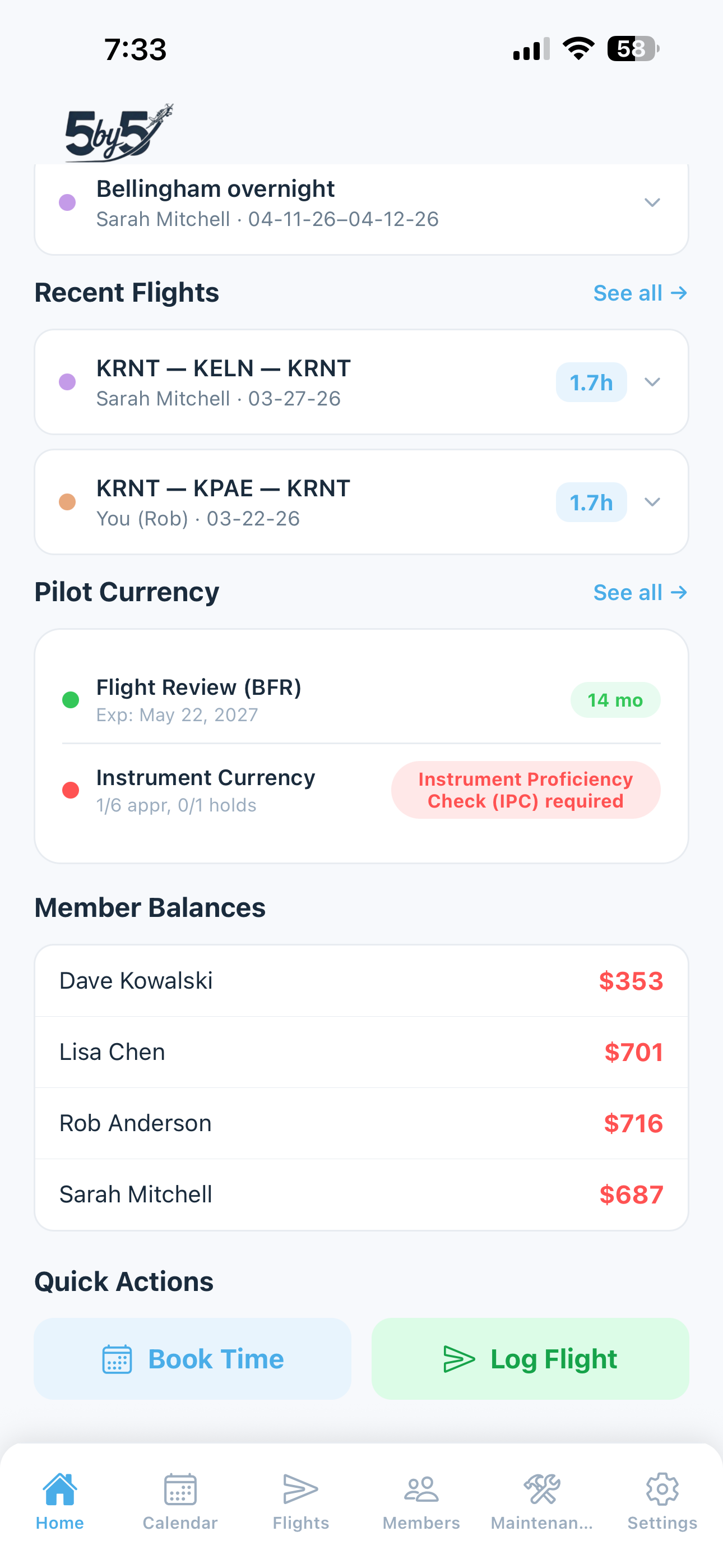
Shows the next upcoming bookings with member color coding, dates, and trip names. Tap any booking to open its details, where you can tap Open in EFB to launch ForeFlight or Garmin Pilot with the route preloaded. Tap See all to go to the Calendar screen. Hidden on Solo plans.
Recent Flights
Shows your most recently logged flights with route, date, and flight time. Tap See all to go to the Flights screen. Each row’s route is tappable for an EFB handoff.
Pilot Currency
A summary of your currency status — day and night passenger-carrying currency, medical, flight review, and instrument proficiency. Color-coded as Current (green), Warning (orange), or Expired (red).
On the free tier, currency is shown as current or expired without expiry detail. On paid tiers, full details are shown including expiry dates, grace periods, and approach/landing counts.
Tap See all to see the full breakdown.
See Pilot Currency for details.
Member Balances (Club plans)
Shows the current running balance for each member in your group.
- Admins, Owners, and Treasurers see all members’ balances
- Regular members see only their own balance
Balances reflect all posted charges and payments. A balance in red means the member owes money; green means they have a credit.
Update Pending Badge
If a member has authorized an ACH payment that hasn’t yet settled, a small blue Update pending badge appears under their name. This is informational only — the ledger balance shown is still the source of truth, and the badge disappears (with the balance updating) once the ACH clears 3-5 business days later.
If the ACH bounces, the badge disappears, the bill stays unpaid, and the member plus every owner/admin receives an email about the failure. See Online Payments for the full lifecycle.
This section is hidden on Solo plans.
Quick Actions
Two buttons at the bottom of the screen:
- Book Time (Club plans) — opens the calendar to create a new booking
- Log Flight — opens the flight logging screen to record a new flight