Scheduling & Calendar
Book flights on a shared calendar with color-coded member slots, EFB handoff, and calendar sync.
Overview
The calendar screen is where your group manages aircraft bookings. Each member gets a unique color, making it easy to see at a glance who has the airplane reserved.
Scheduling is available on Club plans only. Solo accounts do not include a shared calendar.
Viewing the Calendar
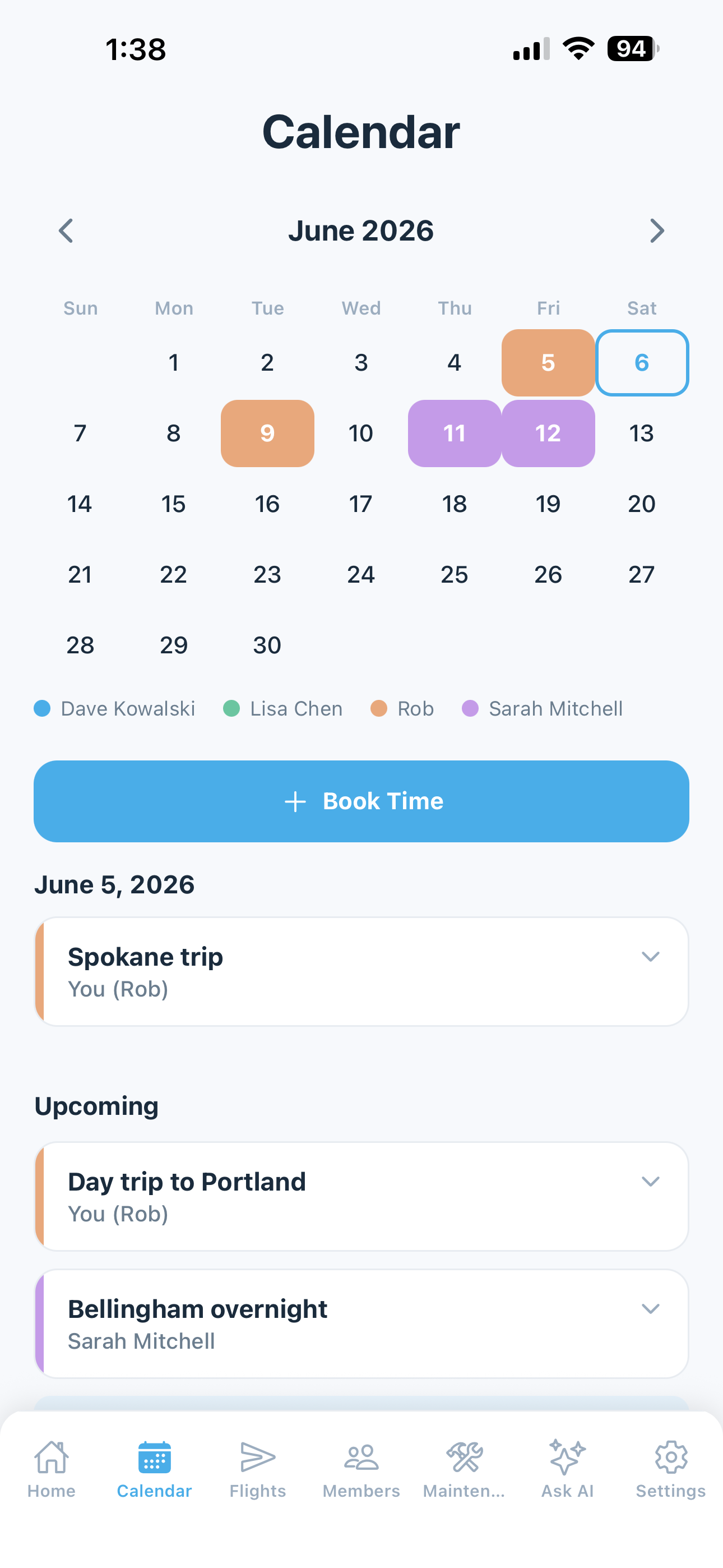
The calendar displays a monthly view with bookings shown as colored bars on each day. Tap any day to see the full details of bookings on that date.
Creating a Booking
To book the airplane:
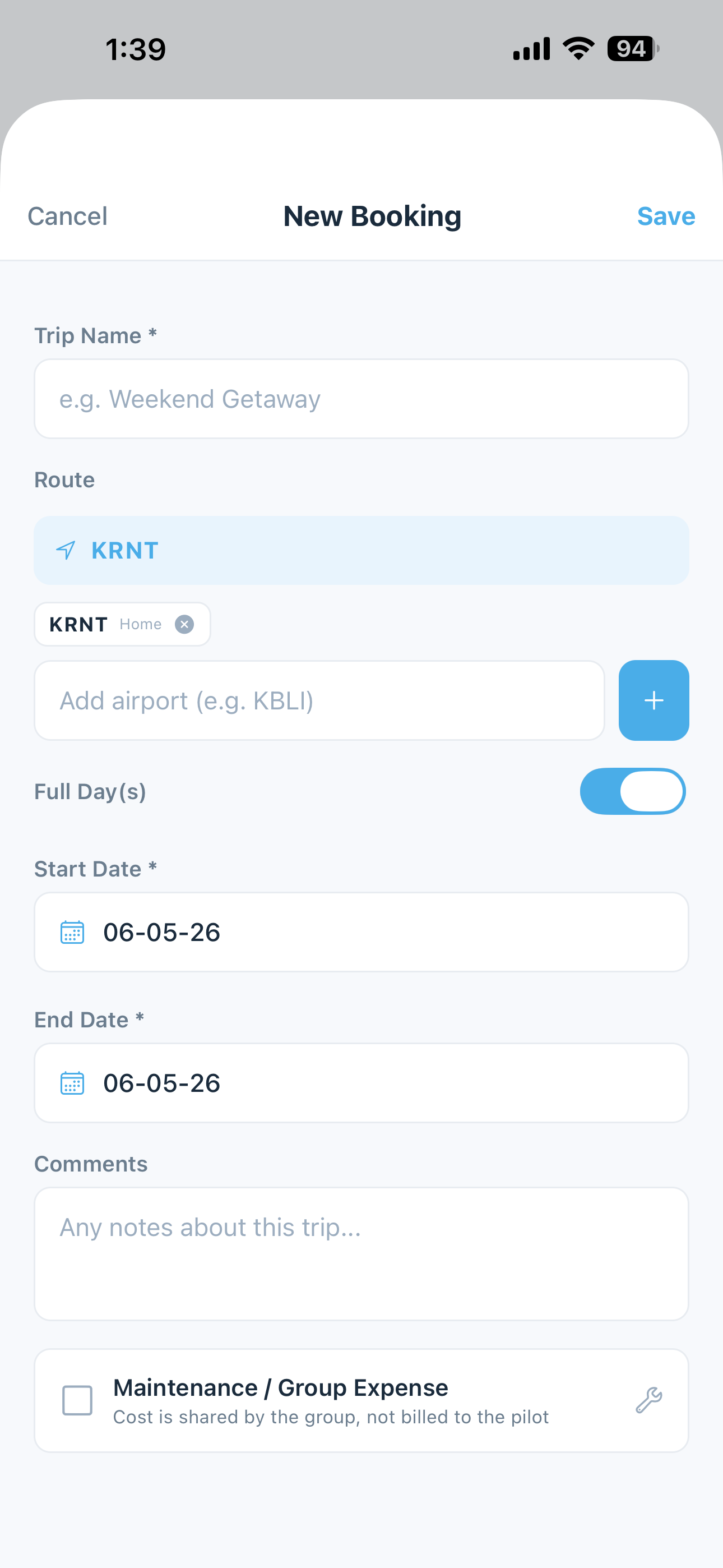
- Tap Book Time on the home screen, or tap the + Book Time button on the Calendar screen, or tap on an empty day
- Select your start and end dates
- Choose full-day or set specific start/end times (15-minute intervals)
- Optionally add:
- Trip name (e.g., “Weekend at Orcas Island”)
- Destination — search by airport code or name. Hours will be estimated based on route distance and aircraft speed set on the Settings page.
- Comments
- If the flight is a shared group expense (e.g., flying to a maintenance facility), check Maintenance / Group Expense. This tags the booking so that when it’s converted to a logged flight, the flight is excluded from the pilot’s personal monthly bill.
- Tap Save to create the booking
Max Booking Length
Owners and Admins set a maximum number of consecutive days a member can book the airplane in a single reservation (configured in Settings > Member Monthly Billing).
- Owners and Admins can exceed this limit when needed — they’ll see a prompt confirming the override.
- Regular members who try to exceed the limit will see a message directing them to contact the group owner to arrange the booking.
Editing and Deleting Bookings
Tap any booking to expand it and see the full details. From there you can:
- Edit any field (dates, destination, comments, etc.) if you originally created the booking
- Delete the booking if you created it or are an Admin/Owner
- Open in EFB — tap the destination identifier or route to launch ForeFlight or Garmin Pilot with the route preloaded
- Log Flight — convert the booking directly into a logged flight with pre-filled dates. This option becomes available once the booking’s end date is today or earlier.
Booking deletions are logged. Every booking delete is captured in the group's audit log. Admins can review the history in case a booking is accidentally (or maliciously) removed. The right to delete a booking is intentionally broad today; we're tightening this in a future release. If your group has had a deletion incident, contact support@blueskyapplications.com — we can help reconstruct what was there.
Color-Coded Members
Each group member is assigned a unique color that’s consistent across the calendar, booking cards, and member list. This makes it easy to identify who has the airplane booked without reading the details.
Converting Bookings to Flights
After you fly, you can convert your booking into a logged flight:
- Open the booking from the calendar
- Tap Log Flight
- The dates are pre-filled — add your tach times, airports, and landings (or tap Prefill flight data to fill most of it automatically)
- Save to log the flight
This keeps your booking and flight records linked and saves you from re-entering dates. The option only appears once the booking’s end date is today or earlier.
EFB Handoff
Tap the destination airport identifier on any booking detail to open the route in your EFB (ForeFlight Mobile or Garmin Pilot). If a multi-leg route is entered, the chooser opens with the full route preloaded.
See EFB Integration for details.
Getting Bookings Into Other Calendars
5-by-5 has two different ways to mirror your group’s bookings into another calendar app — they’re separate features, found in different places in the app, and serve different use cases.
Option 1: Calendar Sync (Settings page, on this device only)
This option lives in Settings > Calendar Sync and writes 5-by-5 bookings directly into the native calendar app on the same phone (Apple Calendar on iOS, Google Calendar on Android). When enabled:
- All group bookings appear as calendar events on your phone
- Events update automatically as bookings are created, modified, or deleted
- Toggle on or off any time from Settings
- Works only on the device where you enable it — sign in on a different phone and you’d need to enable it there too
Calendar Sync requires a paid plan (Solo or Club). Free tier users will be prompted to upgrade when they enable it.
Option 2: Subscribe to Calendar (button at the bottom of the Calendar page)
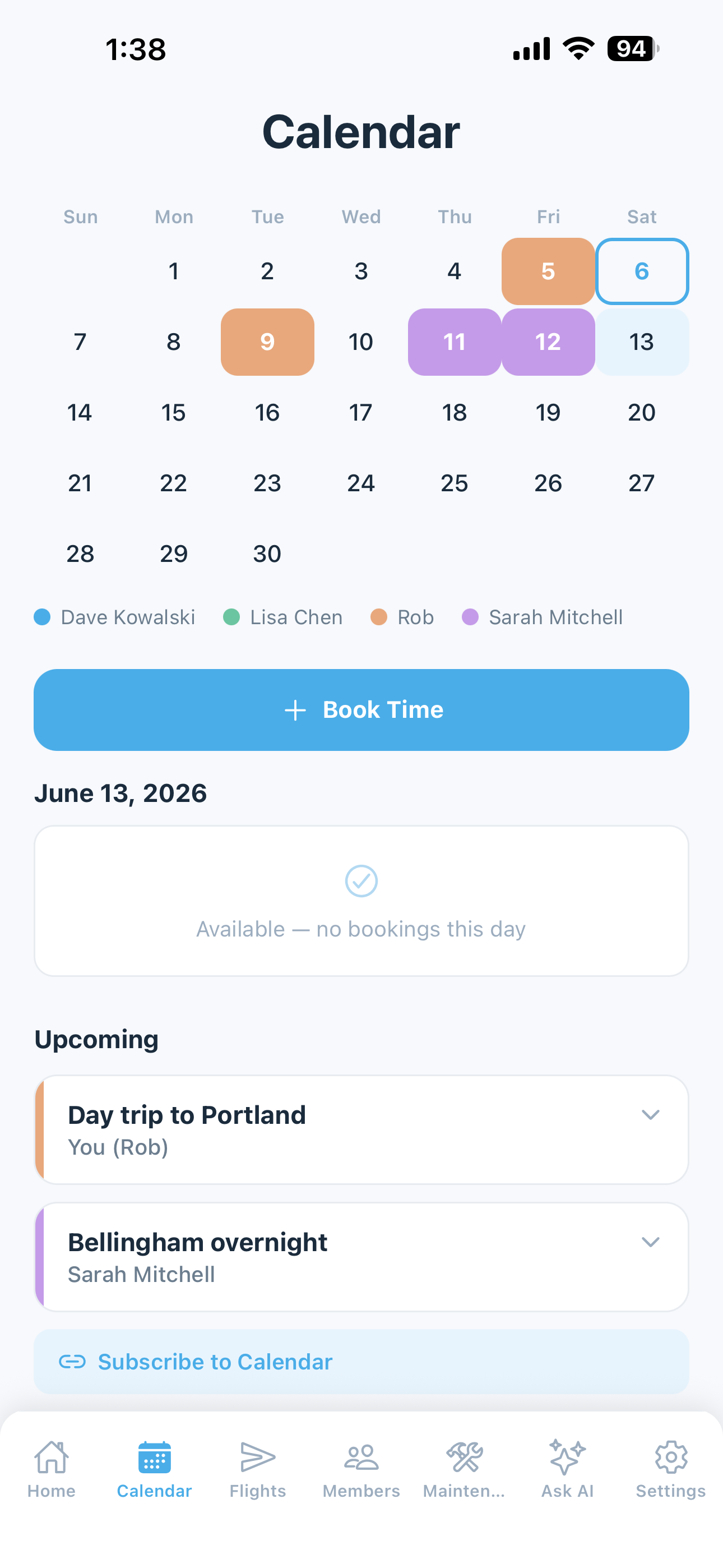
This option lives at the bottom of the Calendar screen as a Subscribe to Calendar button. It generates an ICS feed URL that you can subscribe to from any calendar app — Apple Calendar, Google Calendar, Outlook, even shared family calendars. Use this when:
- You want bookings to appear on a desktop calendar
- You want to share group bookings with a non-member (spouse, dispatcher, etc.) without giving them a 5-by-5 account
- You want the feed accessible from multiple devices without re-enabling sync each time
External calendar refresh schedules: ICS subscriptions don't update instantly. Apple Calendar typically refreshes every 15 minutes to a few hours; Google Calendar can take 12–24 hours to pick up new events. Calendar Sync (Option 1) updates within seconds, so it's the better choice for "right now" awareness. The ICS feed (Option 2) is better for breadth and sharing.
Using AI to Manage Bookings
The AI Assistant can both answer questions about the calendar and take actions on your behalf. Common plain-language asks:
Read:
- “Who has the airplane this weekend?”
- “What dates is the airplane free in July?”
- “When was my last flight to Roche Harbor?”
Write:
- “Book the airplane Saturday afternoon for a trip to Friday Harbor.”
- “Cancel my Saturday booking.”
- “Move my June 14 booking to June 15.”
For any action that creates, changes, or deletes a booking, the assistant summarizes what it’s about to do and asks you to confirm before executing. You can cancel or reschedule your own bookings; admins and owners can manage any booking. Tap the microphone on your keyboard to drive the whole thing by voice.
See AI Assistant for the full capability picture, privacy details, and limitations.