Finances
How to manage member billing, planned expenses, the member financial ledger, sales tax, and online payments on the web dashboard.
Overview
The Finances page is where group administrators manage the financial side of aircraft ownership — estimating monthly charges, tracking planned and actual expenses, collecting payments online, posting bills to members, and maintaining the running ledger of who owes what.
This page is available to Owners, Admins, and Treasurers on Club paid plans.
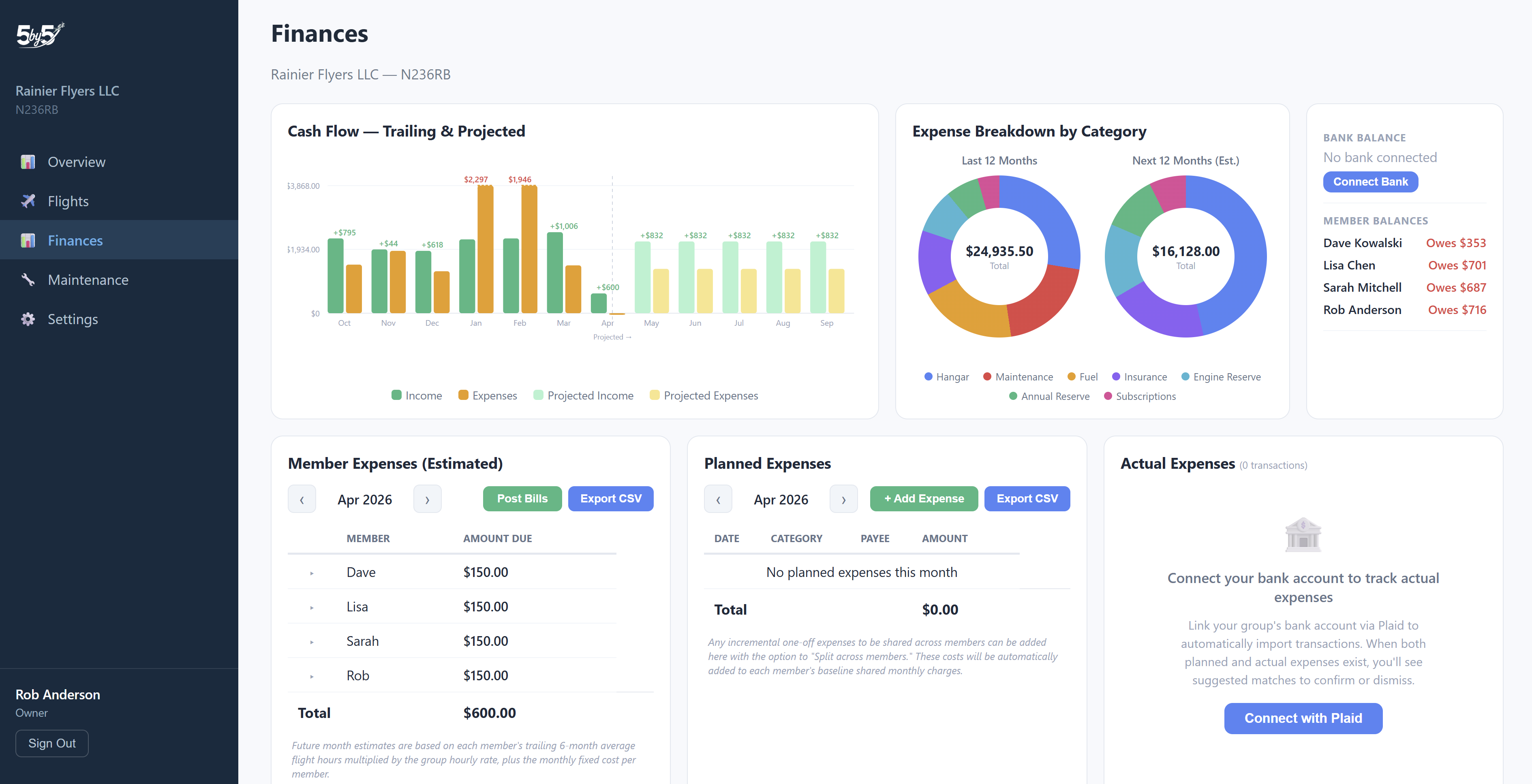
The page has three tabs:
- Overview — the main billing workspace: cash flow, expense breakdowns, member balances, the Calculated Member Expenses table, bank reconciliation, Post Bills, and the member ledger. Unless noted, the sections below describe this tab.
- Invoices — a searchable historical archive of the invoices you’ve posted.
- Expenses — a filterable, sortable table of the group’s expenses.
Cash Flow Chart
A bar chart showing income vs. expenses side by side for the trailing 6 months plus the current month and 6 months forward. Historical income is drawn directly from the member ledger. Future months show projected amounts based on planned expenses and member estimates. This gives you a rolling 12-month picture of the group’s financial health.
Billed vs. Collected. Use the Billed / Collected toggle at the top-right of the chart to switch what the income bars represent:
- Billed (default) — what you invoiced each month (the sum of
chargeentries for that billing period). A smooth picture of expected revenue. - Collected — what members actually paid each month (payments received, by date). This is spikier by nature — a member clearing several months of accrued dues in one payment shows up as a single tall bar in the month it landed. The Collected view rescales its own axis so a lump-sum payment reads as the outlier it is.
Future months show the same projection in both views (there are no future collections yet).
Tip: If you import historical ledger entries and the income bars don't appear, check that each charge entry has a source_month value (e.g., 2025-10). This is the field the cash flow chart uses to group charges by month. The import template includes this column. See Importing Data for details.
To the right of the cash flow chart, two donut charts break down expenses by category (Hangar, Insurance, Fuel, Maintenance, etc.):
- Trailing 12 months — what you’ve actually spent over the past year
- Forward 12 months — what’s projected based on your planned and recurring expenses
Together they give you a clear picture of where the money has gone and where it’s headed.
Financial Snapshot
- Bank Balance — live balance from your connected bank account (enabled through Plaid integration — see Bank Integration)
- Member Balances — a summary of each member’s current running balance: what they owe or what credit they have
- Update pending badge — appears next to a member’s name if they have an ACH payment in flight that hasn’t yet settled. See Online Payments > ACH Lifecycle.
Fixed Expense Items
If you configure a per-line-item breakdown in Settings (e.g., “$450 hangar, $200 insurance, $100 reserve”), the Member Expenses table shows the post-tax fixed-share total derived from those items. Each member’s invoice email also shows the breakdown so members understand what their fixed share is funding.
This is optional — if you don’t configure line items, the single Monthly Fixed Cost amount is used.
Planned Expenses
A list of upcoming or recurring group expenses for the selected month. These are costs the group expects to incur — hangar rent, insurance, annual inspection reserve, etc.
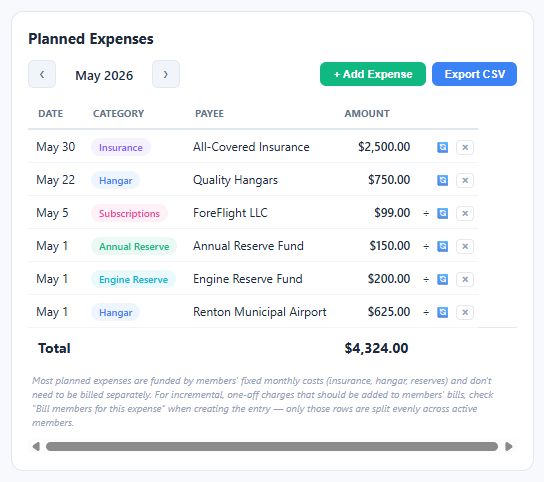
To add an expense, click + Add Expense and fill in:
- Date — when the expense is expected
- Category — Hangar, Insurance, Fuel, Maintenance, Other
- Payee — who you’re paying (e.g., “Renton Airport Authority”)
- Amount
- Recurring — toggle on if this expense repeats, then select the interval: monthly, quarterly, or annually. It will auto-populate in future months accordingly.
- Incremental cost to be split among members — check this if the expense is above and beyond the standard fixed costs already built into each member’s monthly dues. Most routine shared costs (hangar, insurance, reserves) are already captured in the Monthly Fixed Cost setting. This checkbox is for one-time or irregular expenses that need to be added to a specific month’s charges. When checked, the total amount is divided equally among all active fixed-share pilots and appears in each member’s Shared Expenses column in the Member Expenses table.
About the Shared Group Charge. When a planned expense in the current month has Incremental cost to be split among members checked, the per-member share appears on each member’s expanded bill detail (and on their invoice email) as a Shared Group Charge line item, and rolls up into the Shared Expenses column of the Member Expenses table. It’s a one-time line distinct from the recurring fixed-cost share. If multiple shared expenses land in the same month, they’re summed into one Shared Group Charge per member. Mechanics and hourly-only members are excluded from the split, the same as with the fixed-cost denominator.
Recurring Expense Maintenance
Recurring expenses auto-populate forward each month. A background job extends the recurring schedule out a few months at a time so you don’t accumulate hundreds of placeholder rows. If you change a recurring expense’s amount or category, future occurrences pick up the change; past occurrences (already passed) are unchanged.
Member Expenses (Estimated)
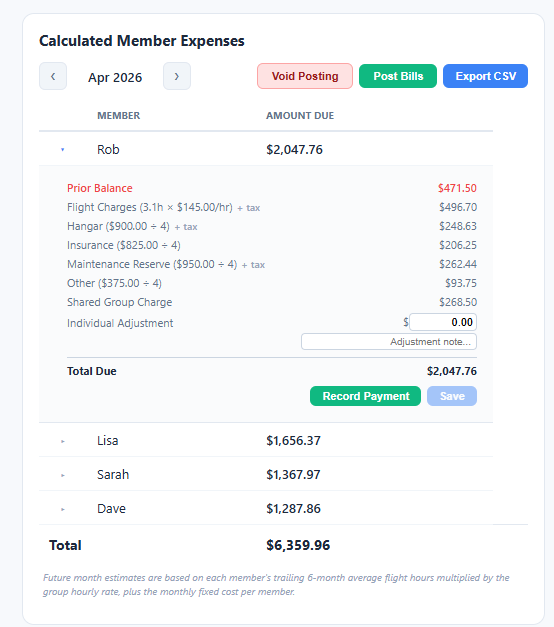
This table is the core of the monthly billing workflow. It shows each member’s estimated charges for a given month, broken down into components:
- Flight Charges — hours flown × hourly rate
- Fixed Cost — their share of the monthly fixed cost (see Fixed Expense Items above; excludes mechanics and hourly-only members)
- Shared Expenses — their share of any planned expenses marked as split across members
- Individual Adjustment — a one-time credit or charge specific to that member
- Sales Tax (if configured) — combined rate from your sales tax authorities applied to flight charges plus any taxable fixed expense items
- Total — the sum of all columns
Use the month navigation arrows to move between months.
Hourly-Only Members
Members flagged as Hourly billing only on their member card are billed for flight time only. They’re excluded from the fixed-cost denominator entirely — so if you have 4 active pilots and one is hourly-only, fixed expenses split across the other 3. This setting can be changed in the Dashboard (Settings tab → Members tab → choose a member and toggle Hourly billing only) as well as on the Members tab in the mobile app. See Members > Hourly-Only Members for the admin side.
Expanding a Member Row
Click any member row to expand it and see the full calculation detail. From the expanded view you can:
- Edit the adjustment — enter a positive or negative dollar amount to add a credit or extra charge
- Add an adjustment note — a short explanation that will appear in the ledger when bills are posted
- Save Changes — the Save button only activates when you’ve actually changed something
Posting Bills
When you’re satisfied with the estimates for the month, click Post Bills to open a read-only review of what will be posted to each member’s ledger. The review shows each member’s total and any adjustment notes. At the bottom of the modal is a Send invoice emails to all members checkbox — checked by default. When everything looks right, click Confirm & Post.
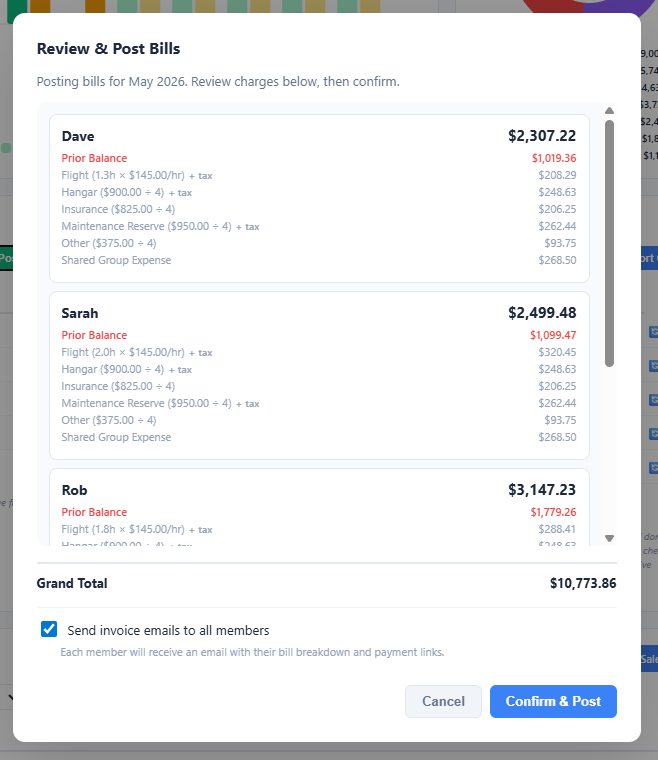
When you confirm:
- A
chargeentry is written to each member’s ledger for their total — this happens every time, since this is what “posting” means - Each charge is tagged with
source_monthso it appears in the right month of the cash flow chart - If your group has any sales tax authorities configured, the per-authority tax accruals are written to the group’s tax ledger so the Sales Tax Report stays in sync
- If the Send invoice emails checkbox is left checked, each member receives an invoice email with their line-item breakdown and a Pay with Card or Bank button (if Stripe Connect is configured — see Payment Settings below)
Any adjustment or shared expense notes are automatically included in the ledger entry’s comments field.
Tip: Post Bills reads the live values from the table at the time you click — including any adjustments you've made in the current session. Save any individual adjustments before posting.
Tip: Untick the Send invoice emails checkbox if you want to write the charges to the ledger but handle communication separately — e.g., for an end-of-year true-up you'll discuss with the group before billing, or a retroactive correction.
Voiding a Posted Bill
If you posted a bill in error — wrong month, missing an adjustment, a tax authority was misconfigured, anything — click the Void Posting button next to Post Bills. The button only appears on the Calculated Member Expenses page when the month you’re viewing has already been posted.
Void Posting opens a confirmation modal that summarises what will be removed, and on confirm it atomically:
- Deletes every member-charge ledger entry tagged with that month’s posting
- Removes the matching per-authority sales-tax accruals from the group tax ledger
Member payments are not affected — only the charges and the corresponding tax accruals are removed.
Use Void Posting rather than editing or deleting ledger entries one-by-one when the posting involved sales tax. The atomic void keeps the charge ledger and the tax ledger consistent; ad-hoc edits in the ledger leave orphaned tax accruals that throw off the Sales Tax Report. After voiding, correct what needs correcting and re-post.
Important: Members who already received an invoice email won't get an automatic "void notice" — you'll need to tell them separately. For small corrections after invoices have gone out, it's often cleaner to leave the posting in place and add a corrective ledger entry (a positive or negative manual adjustment) than to void and re-post.
Actual Expenses (Bank Transactions)
If you’ve connected a bank account via Plaid, this section shows your actual transactions for the selected month — what you actually spent vs. what you planned. See Bank Integration for setup instructions.
Use Sync Now to pull the latest transactions. Export to CSV if you need the data in a spreadsheet.
Reconciling Planned vs. Actual
Click Reconcile on the Bank Account Activity panel to open the reconciliation view for the month — your Planned Expenses on the left, the bank transactions on the right. It matches what you budgeted against what actually cleared the bank and lets you bring the plan in line with reality:
- Suggested matches. The system suggests which bank transactions line up with which planned expense, by amount, date, and payee. A single planned row can be matched to more than one transaction (e.g. a “Washington State” placeholder matched to two separate Dept. of Revenue payments). When the payee lines up but the amount differs, it’s flagged “amount differs.”
- Confirm on the planned side. For each suggested match you choose Match all, Match just one, or No match — anything you don’t take is freed to be handled on its own.
- Adjust to actual. Once matched, if the planned amount or date differs from the bank, an Adjust button updates the planned entry to the real figure. For a recurring expense you can optionally roll the new amount and/or date forward to future occurrences (each independently).
- Add or exclude the rest. A real bank expense with no planned entry can be Added with a category; a transaction that isn’t an operating expense (an internal transfer, say) can be Excluded. Only money going out is treated as a candidate expense — deposits and income are set aside automatically.
Reconciliation is incremental: your matches persist, and the next time you sync only new transactions appear as unreconciled. Closing the window refreshes the page so the Planned Expenses and Cash Flow widgets reflect what you reconciled.
Online Payments (Stripe Connect)
To accept online ACH and card payments from members, connect a Stripe account for the group. This is one-time setup:
- From the Settings page, open the Billing tab and find the Online Payments card. Click Connect Stripe.
- You’ll be redirected to Stripe to provide standard business info (group name, address, bank account, EIN if applicable)
- Once Stripe approves the account (typically within a few minutes for sole-prop/LLC structures), the connection becomes active
- Going forward, every posted invoice includes a Pay with Card or Bank button that opens Stripe Checkout
Funds settle directly into the group’s bank account, typically T+2 days from successful settlement. 5-by-5 takes no cut of these payments — Stripe’s standard processing fees apply (~2.9% + $0.30 for cards, ~0.8% capped at $5 for ACH).
ACH “Update pending” badge. ACH payments take 3-5 business days to actually settle, even after the member authorises them in Stripe Checkout. While an ACH payment is in flight, a small blue Update pending pill appears next to that member’s name in the Member Expenses table. The ledger balance stays as-is until the payment actually settles — the pill is a heads-up that the apparent unpaid balance is about to change, so you don’t follow up with the member for a bill they’ve already paid. The pill clears automatically when Stripe webhook fires on settlement success (or on a failure, where the balance also reverts). Card payments don’t need this badge since they clear in real time.
See Online Payments for the full member experience and ACH lifecycle.
When a Payment Comes In
When a member’s card or ACH payment settles successfully:
- A payment entry is recorded in their ledger (no manual entry needed)
- Their balance updates automatically and their row shows as settled in Member Balances
- The member receives a green Payment Receipt email
If the ACH bounces, the bill stays unpaid, the member is notified, and every Owner and Admin in the group is BCC’d so the treasurer can follow up.
Member Ledger
The ledger is the authoritative record of all financial activity for each member — charges, payments, adjustments, and opening balances. Every posted bill and recorded payment appears here as a line item.
Filtering: Use the dropdowns to filter by member, month, and entry type (Opening Balance, Charge, Payment, Adjustment).
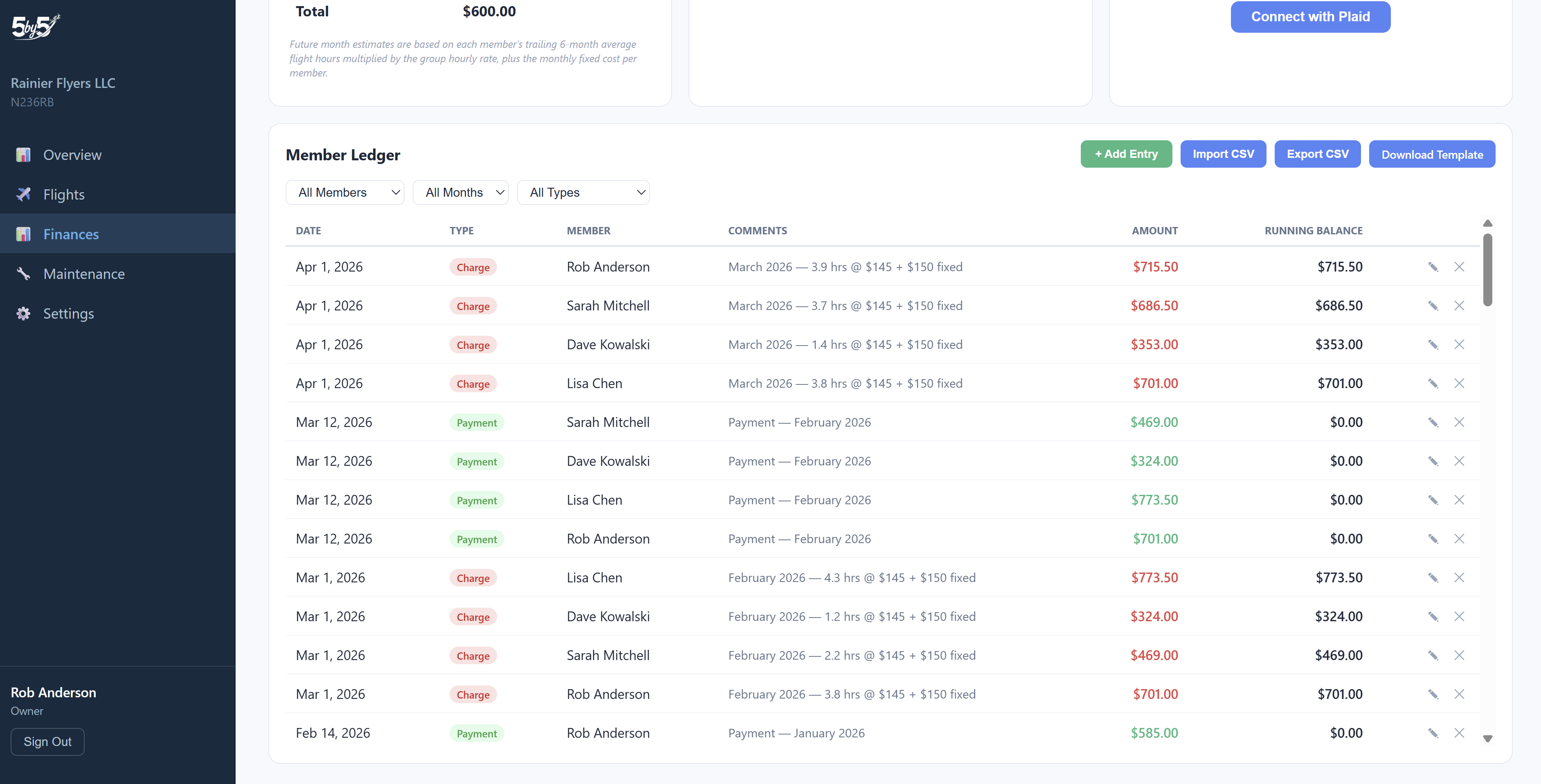
Ledger Entry Types
- Opening Balance — the starting balance when a member joins or when you initialize the ledger
- Charge — a bill posted for a month’s flying and expenses
- Payment — a payment received from a member
- Adjustment — a manual credit or debit (e.g., to correct an error or handle a one-time expense)
Adding a Ledger Entry
Click + Add Entry to manually add any entry type. This is how you record payments when a member pays their bill outside of Stripe (cash, check, Venmo, Zelle) — select the member, enter the amount as a negative number for a payment (which reduces their balance), add a note, and save.
Stripe-collected payments are recorded automatically when they settle; you don’t need to add those manually.
Editing or Voiding Entries
Most ledger entries can be edited directly — click any row → Edit to update the amount, date, or notes. Use this for typo fixes, correcting a manually-added entry, or adjusting an opening balance.
Important: bill charges tied to a posted month behave differently. When you Post Bills, each member’s charge is paired with sales-tax accruals in the group’s tax ledger. Editing or deleting the ledger entry alone leaves orphaned tax accruals that throw off your Sales Tax Report.
To correct or remove a posted bill’s charges, use Void Posting in the Calculated Member Expenses section above — it atomically removes the charges and the matching tax accruals together. See Voiding a Posted Bill for the full procedure. After voiding, fix what needs fixing and re-post.
For everything else (manual payments, manual adjustments, opening balances), editing is fine. Avoid deleting entries when you can — a $0 edit with an explanatory note, or a counter-adjustment, keeps a clearer audit trail.
Check for Updates
If a payment came in through Stripe — or another admin added a manual entry from the mobile app or another browser tab — since you opened this page, click Check for updates above the ledger to refresh and pull in the latest entries without a full page reload. The button is the fastest way to confirm that an ACH payment with an Update pending badge has settled, or that a teammate’s manual cash-payment entry has landed.
Sales Tax Report
Click Sales Tax Report above the ledger to open a per-authority breakdown of every sales tax dollar accrued from posted bills. Use it as the working file for periodic remittance to your state, city, or county tax authorities, or hand it to your accountant.
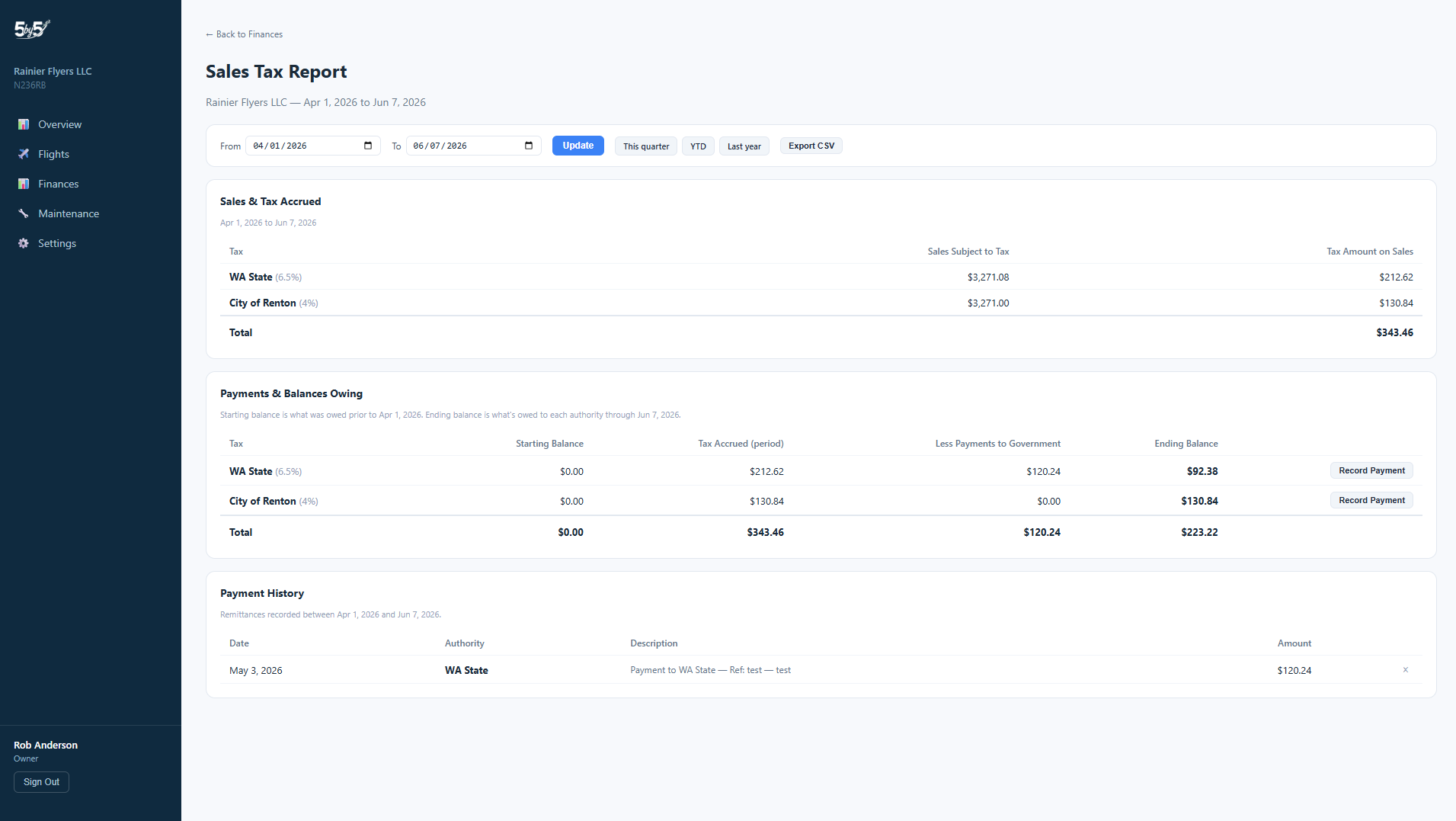
The report reads from the same tax ledger that Post Bills writes to and Void Posting clears from — so anytime you void and re-post a month, the report updates immediately to match. The report is scoped by the sales tax authorities you’ve configured in Settings → Billing → Sales Tax Authorities; if a member or fixed expense item isn’t subject to a given authority’s tax, it’s excluded from that authority’s column.
Importing and Exporting
- Import CSV — bulk import ledger entries from a spreadsheet. Download the template first — it’s an Excel file pre-configured with the required columns (date, source_month, type, member name, amount, description, note) and built-in dropdown validation for the type field and member name field. See Importing Data > Importing Ledger Entries for details.
- Export CSV — download the full ledger for your records or for sharing with your accountant.
Invoices Tab
The Invoices tab is a historical archive — a searchable record of every invoice you’ve posted, nothing more. The question of who still owes and who’s paid is answered on the Overview tab’s Member Balances, which is derived from the ledger and is authoritative; the Invoices tab deliberately doesn’t duplicate that status.
- The list shows one row per posted invoice — member, month, and amount. Draft bills (working state that holds pending adjustments before a month is posted) aren’t shown here.
- Search by member name to narrow the list. Export CSV produces an accountant-ready file of everything currently listed — it includes extra columns (status, paid date, due date) beyond what’s on screen, as a paper trail.
- Click any invoice to open its full breakdown on the right: the issue date, the member’s email, and every line item (flight charges, fixed-cost shares, shared charges, adjustments, prior balance) totalling the amount billed.
- Resend Email re-sends the invoice to the member (available for posted, unpaid invoices); Print produces a paper or PDF copy.
Expenses Tab
The Expenses tab is a deep, filterable view of the group’s expenses in one table — handy for year-end review, handing figures to an accountant, or answering “what did we spend on maintenance this year?”
- View toggle — switch between By Category and By Flight to group the same data either way.
- Filters — a From / To date range, Category, a Payee / description search, and a Recurring filter (all / recurring only / one-off only). Multi-aircraft groups also get an Aircraft filter. Reset filters clears them all at once.
- Running summary — a line above the table shows how many expenses match and their filtered total, so any slice gives you an instant subtotal.
- Sortable columns — click Date, Category, Payee, or Amount to sort. Each row shows the date, category, payee, amount, description, whether it recurs, who paid, and (in multi-aircraft groups) which aircraft.
- Export CSV downloads exactly what’s filtered.
Related Pages
- Online Payments — the full ACH/card payment lifecycle from a member’s perspective
- Settings — configure hourly rate, fixed expense items, sales tax authorities, payment due days
- Bank Integration — connecting your group’s bank account via Plaid
- Importing Data — CSV import for historical ledger and flight data